

These 10 tips come from the MiniMax Code desktop app, and each takes about 10 seconds to learn. How many have you already used?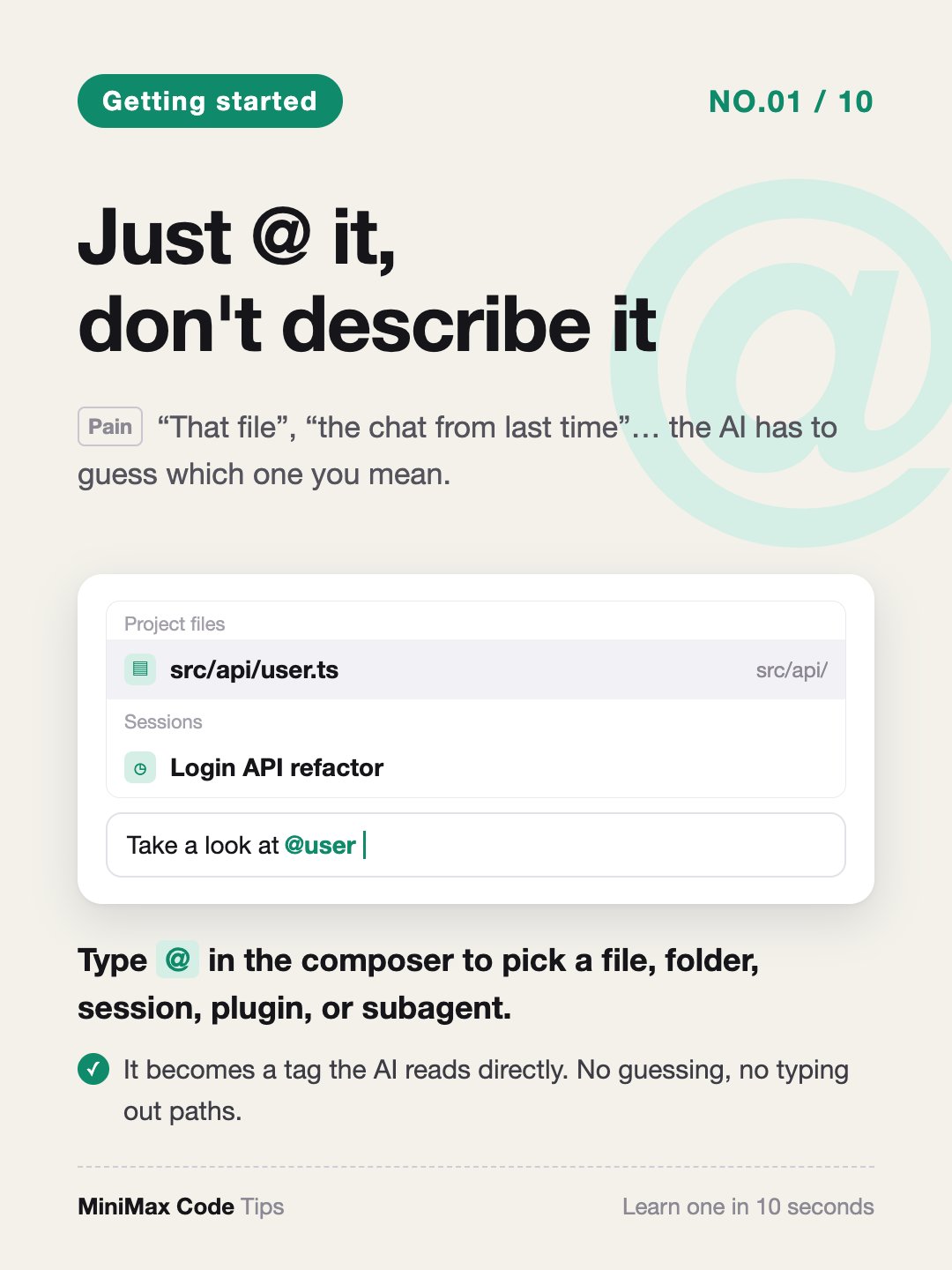
These tips apply to local sessions in the desktop app. If you can’t find an entry in the menu, update MiniMax Code to the latest version.
Getting started
01 · Just @ it, don't describe it
Type
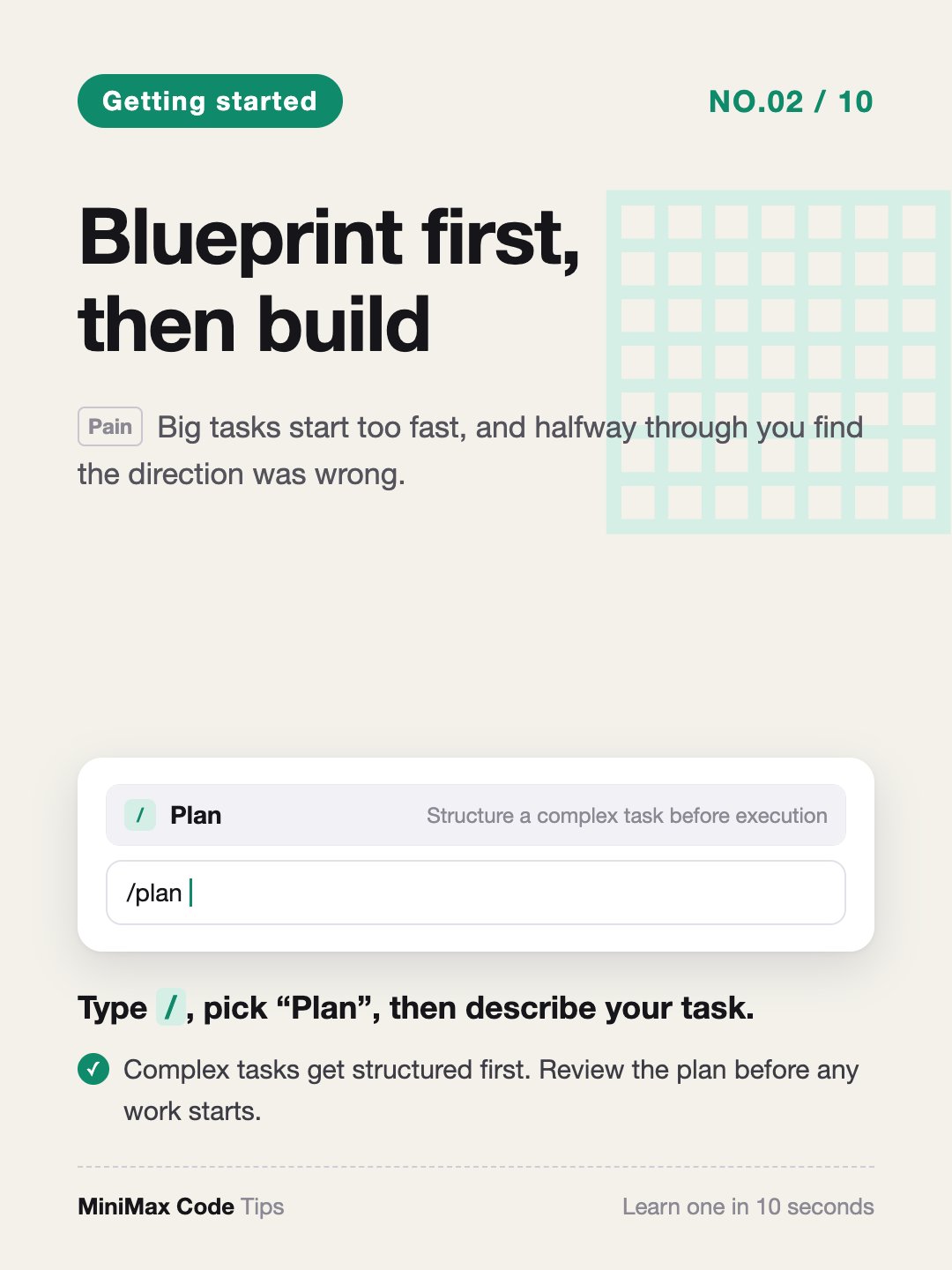
@ in the composer to pick a file, folder, session, plugin, or subagent. It becomes a tag MiniMax Code reads directly, so you don’t have to type out paths.02 · Blueprint first, then build
Type
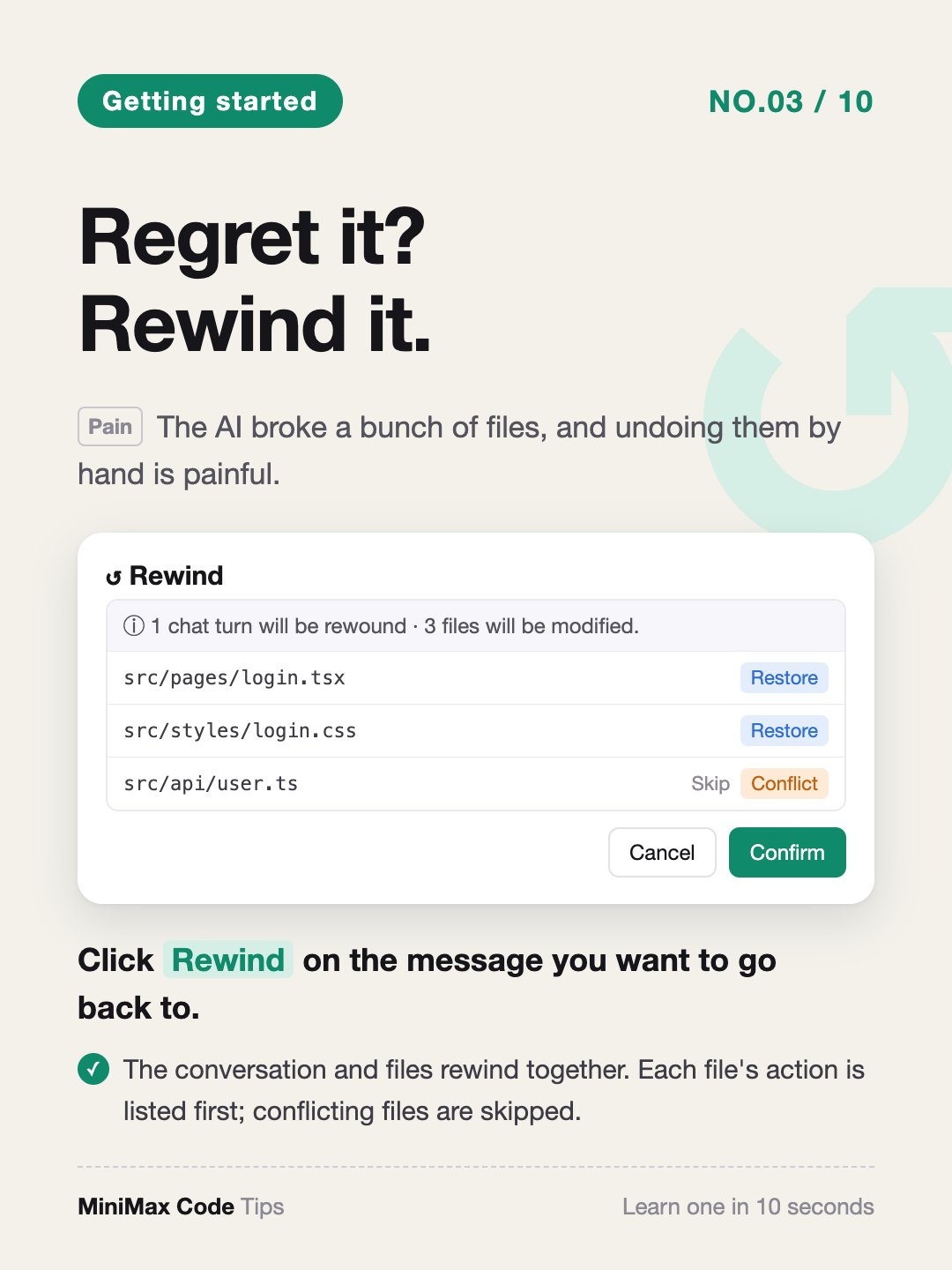
/, pick Plan, then describe your task. Complex tasks get structured first, and you review the plan before any work starts.03 · Regret it? Rewind it.
Click Rewind on the message you want to go back to. The conversation and files rewind together. Before you click Confirm, each affected file is listed with its action (Restore, Delete, or Skip); files with conflicts are skipped instead of overwritten.
Productivity
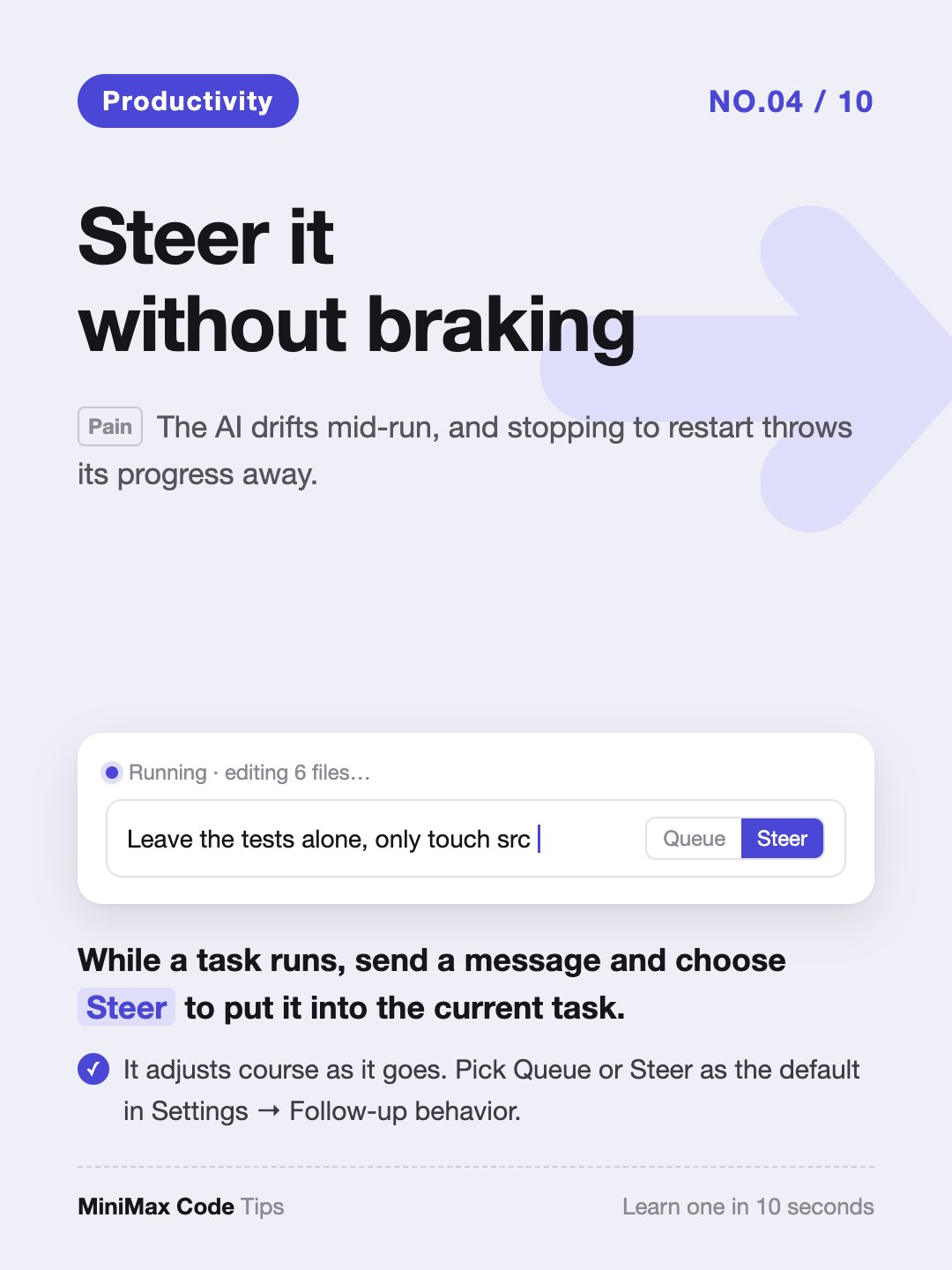
04 · Steer it without braking
While a task runs, send a message and choose Steer to put it into the current task. MiniMax Code adjusts course as it goes. Pick Queue or Steer as the default in Settings → Follow-up behavior.
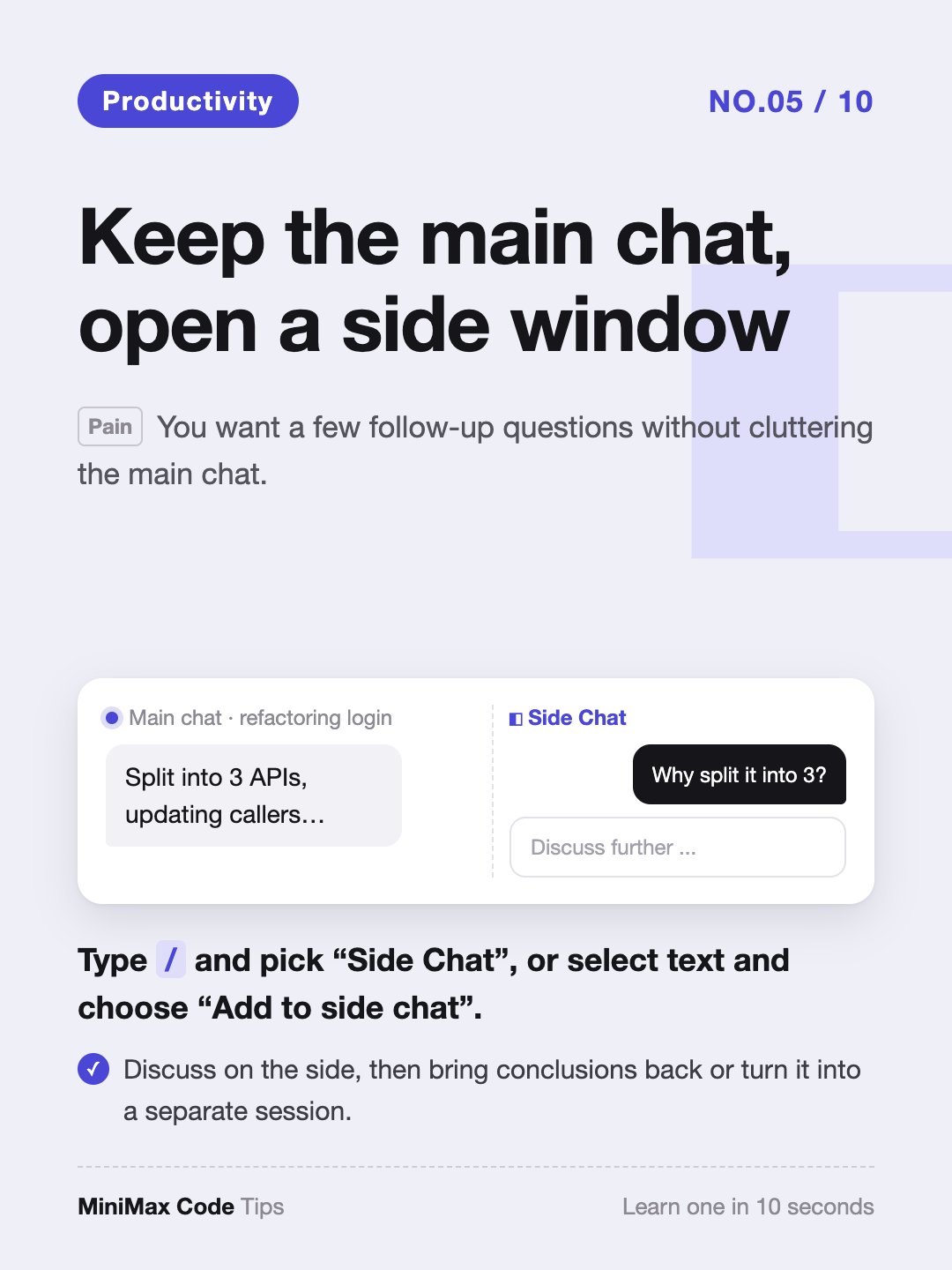
05 · Keep the main chat, open a side window
Type
/ and pick Side Chat, or select text in a message and choose Add to side chat. Discuss on the side, then bring conclusions back to the main chat or turn it into a separate session.06 · Give it a finish line
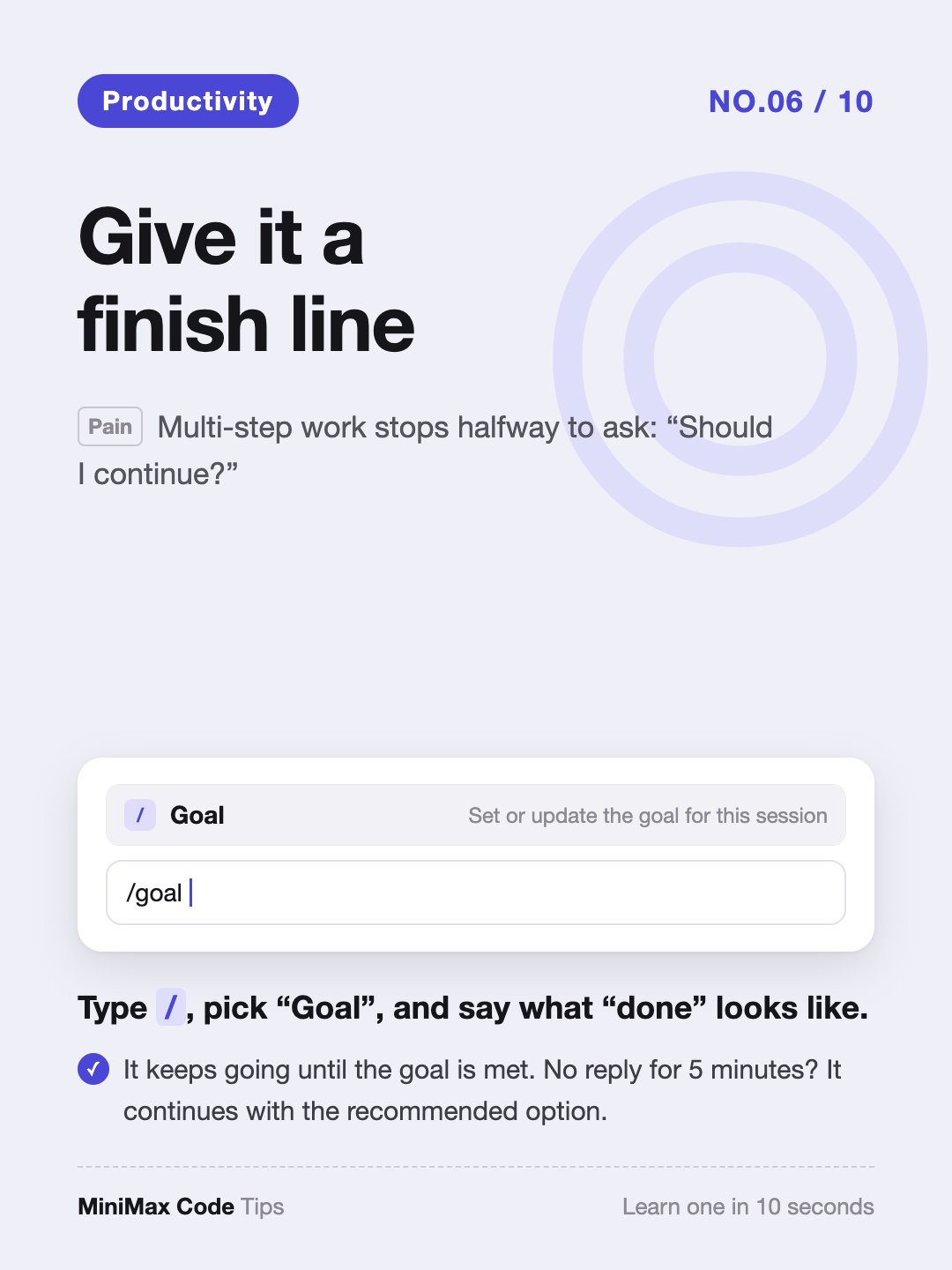
Type
/, pick Goal, and say what “done” looks like. MiniMax Code keeps working until the goal is met or progress is blocked.07 · Repack the suitcase, free up space
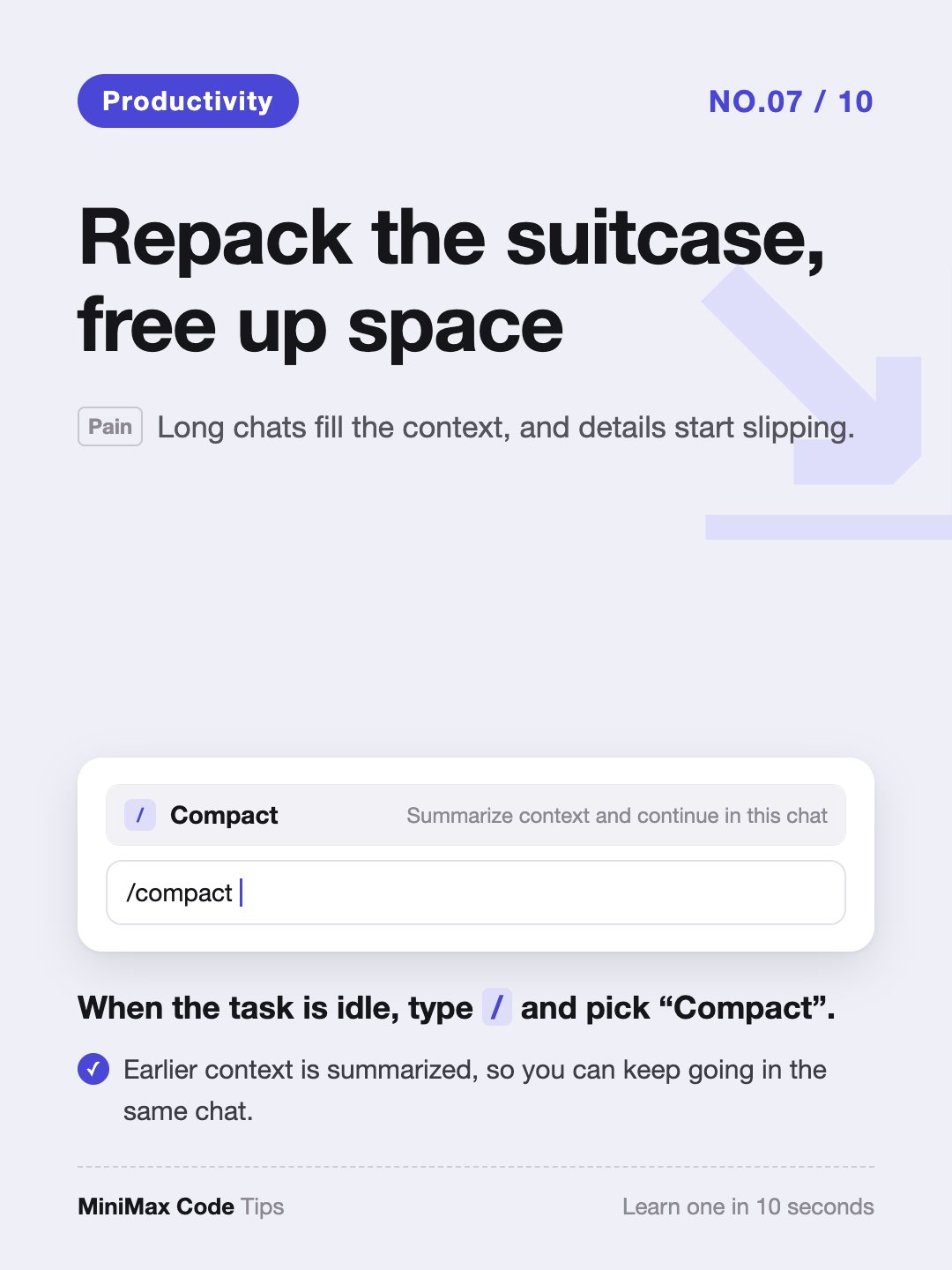
When the task is idle, type
/ and pick Compact. Earlier context is summarized so you can keep going in the same chat.08 · Save a parallel universe
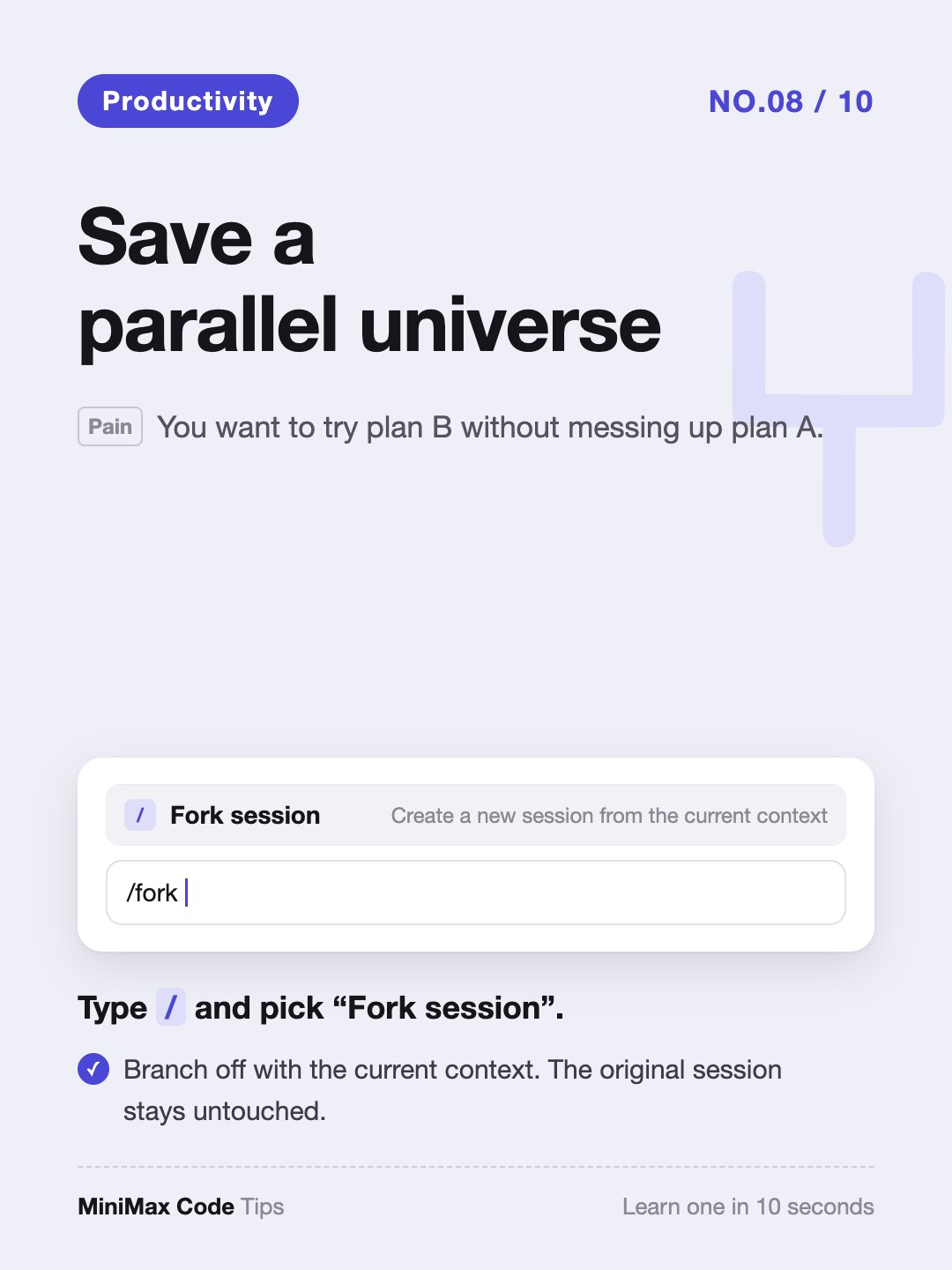
Type
/ and pick Fork session. Branch off with the current context to try another approach; the original session stays untouched.Hidden gems
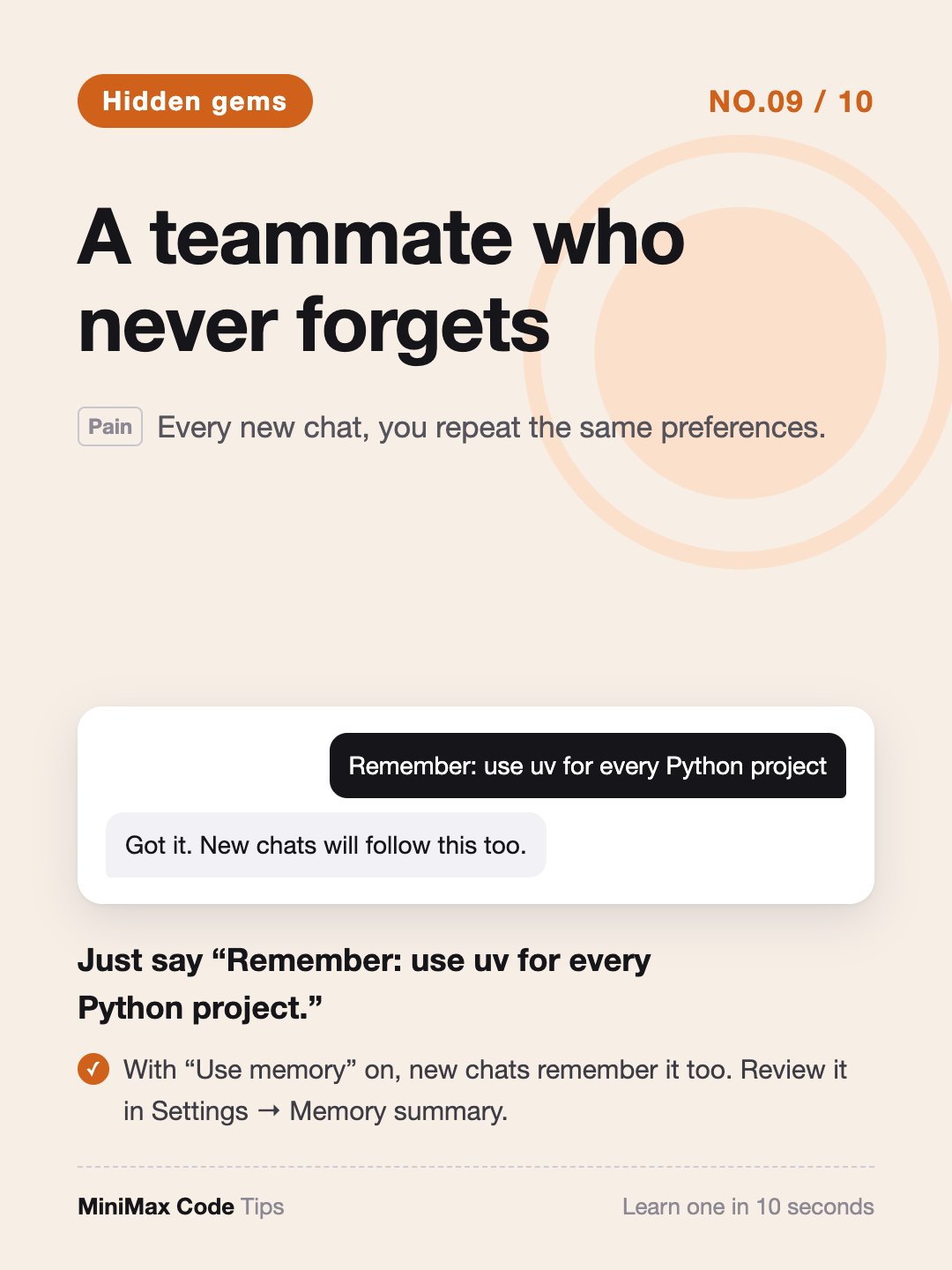
09 · A teammate who never forgets
Just say “Remember: use uv for every Python project.” With Use memory on, new chats remember it too. View, edit, or delete it in Settings → Memory summary.
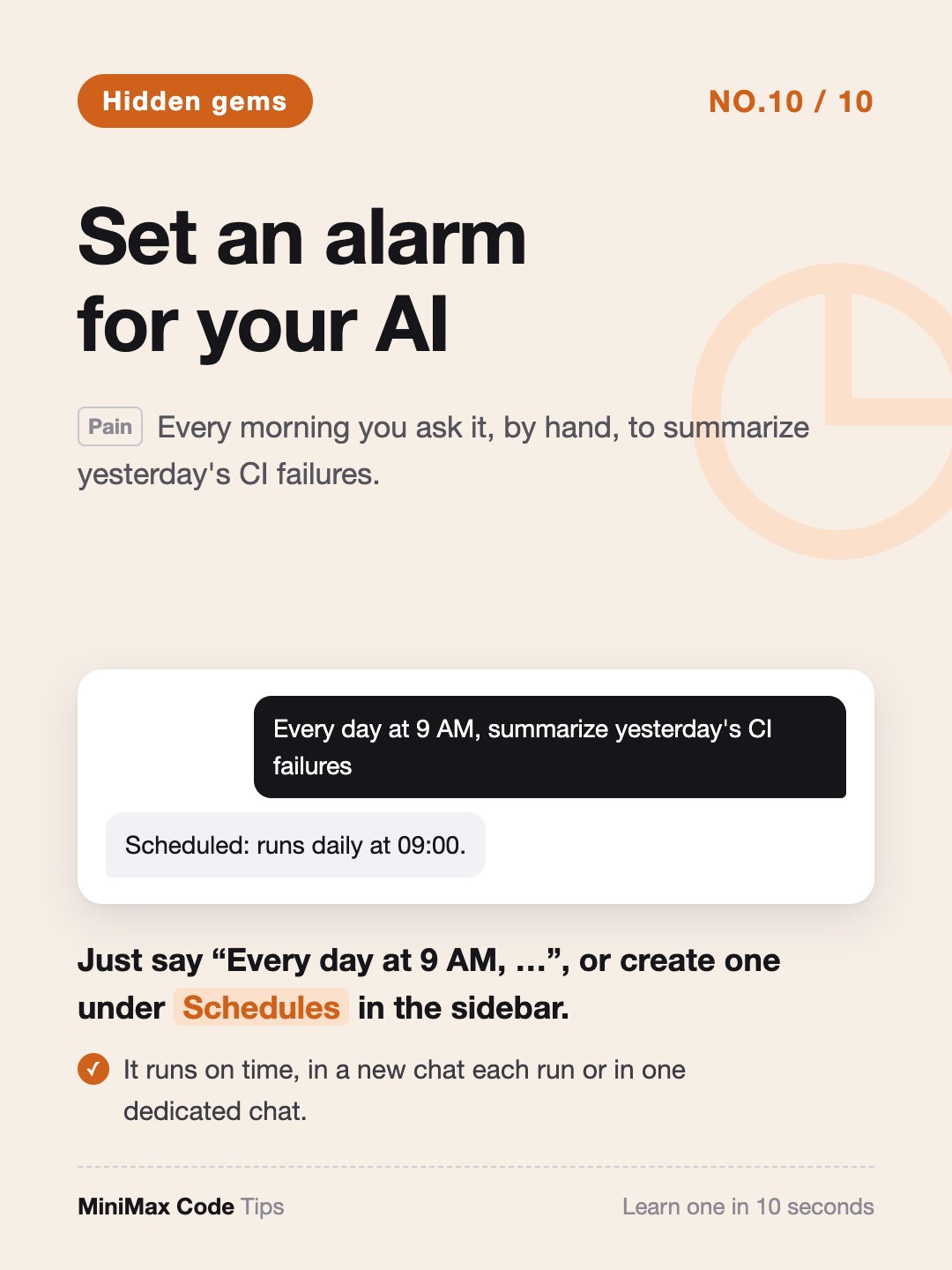
10 · Set an alarm for your AI
Just say “Every day at 9 AM, …”, or create one under Schedules in the sidebar. It runs on time, either in a new chat each run or in one dedicated chat.