

Computer Use lets MiniMax Code operate apps on your computer directly: moving the mouse, clicking, typing, and reading the screen when needed. It fits work that can only be done through a graphical interface.Computer Use is available in the desktop app on macOS and Windows. To use it from the terminal, see Computer Use in the CLI.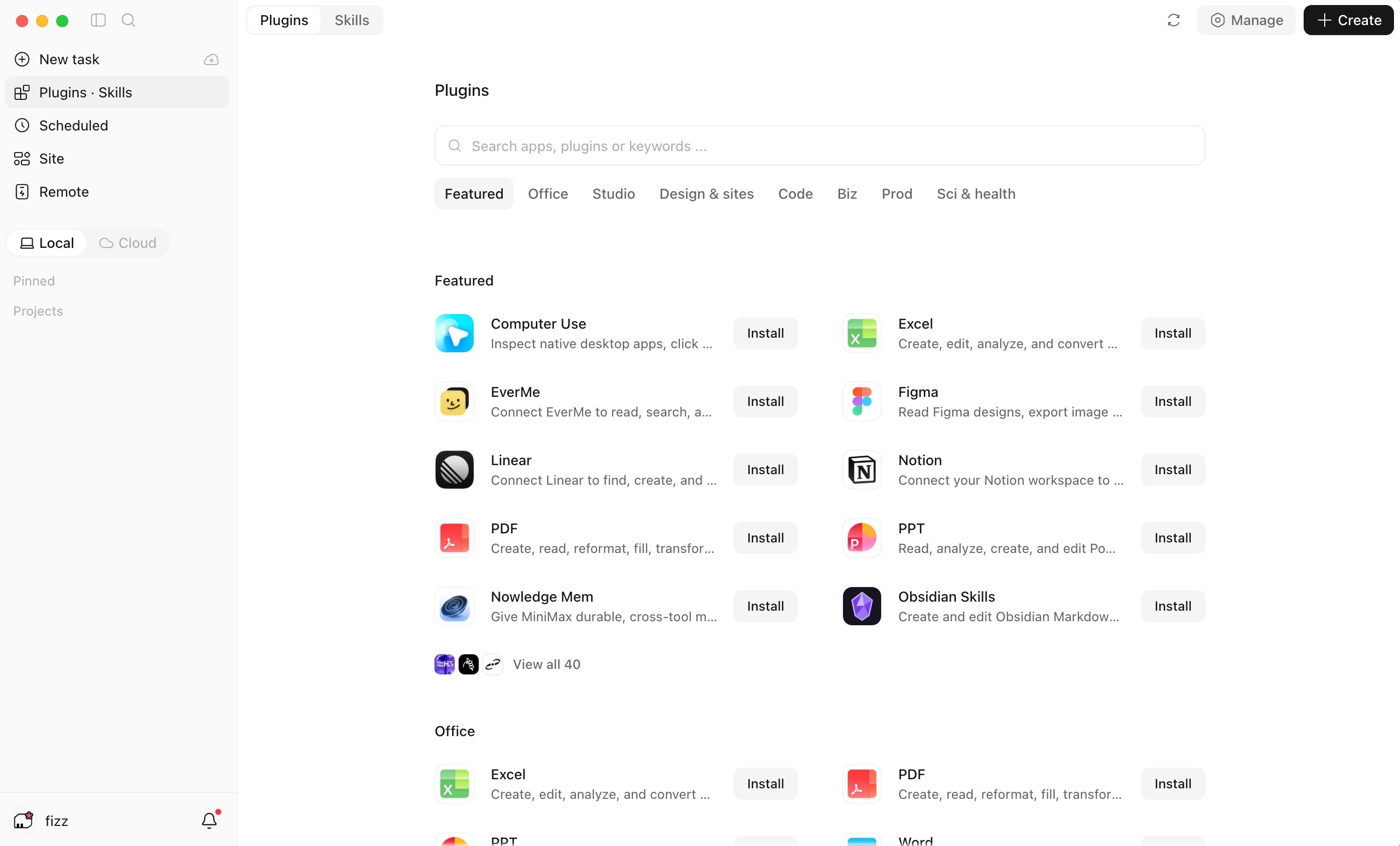
Before You Start
- Enable the Computer Use plugin from the plugin marketplace.
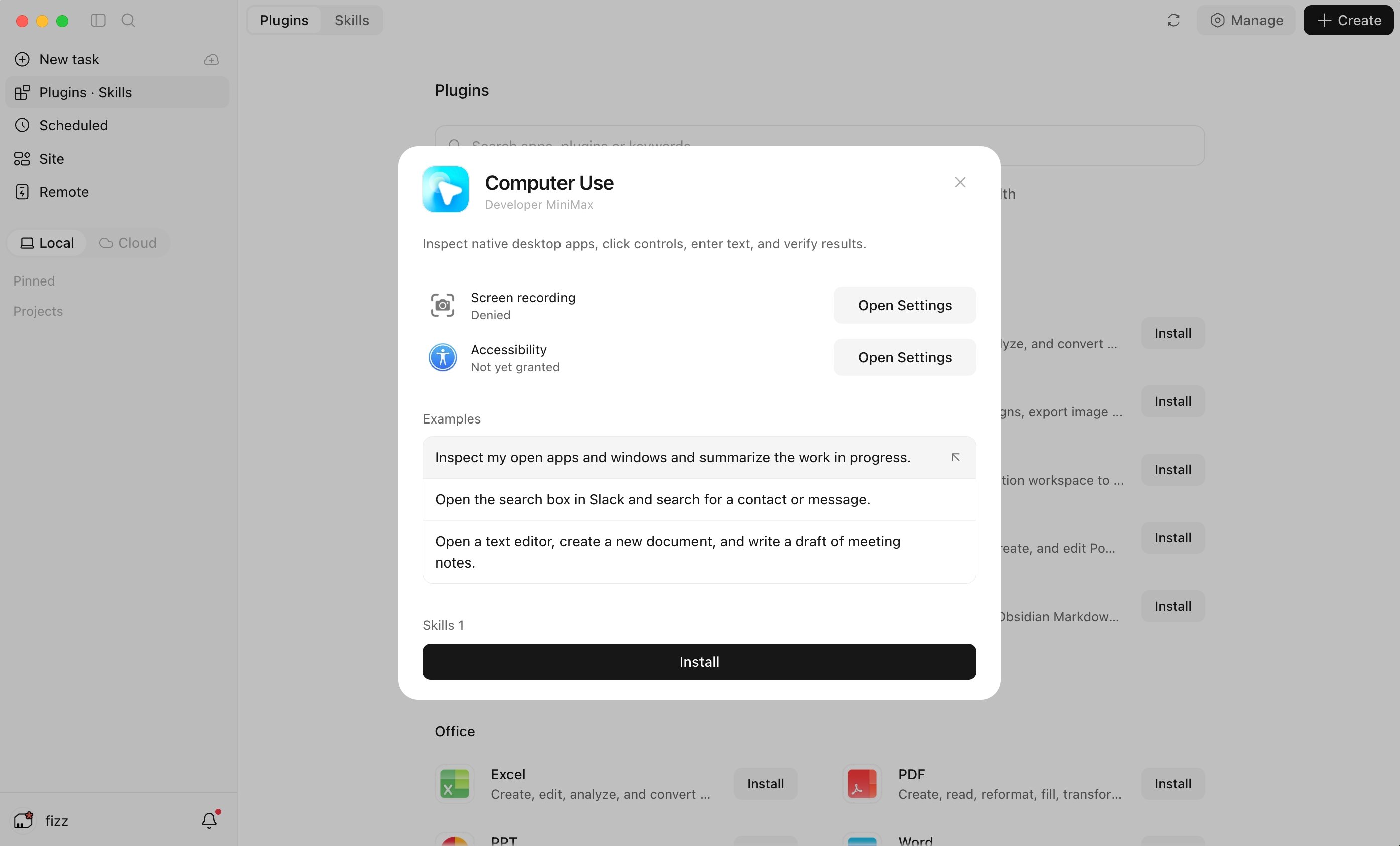
- On macOS, grant
MiniMax Computer Usethe Screen Recording and Accessibility permissions. Follow the guide in the plugin details or the conversation: drag the app into the permission list in System Settings and turn on its switch, then return to MiniMax Code and click Verify and continue. No restart is needed.
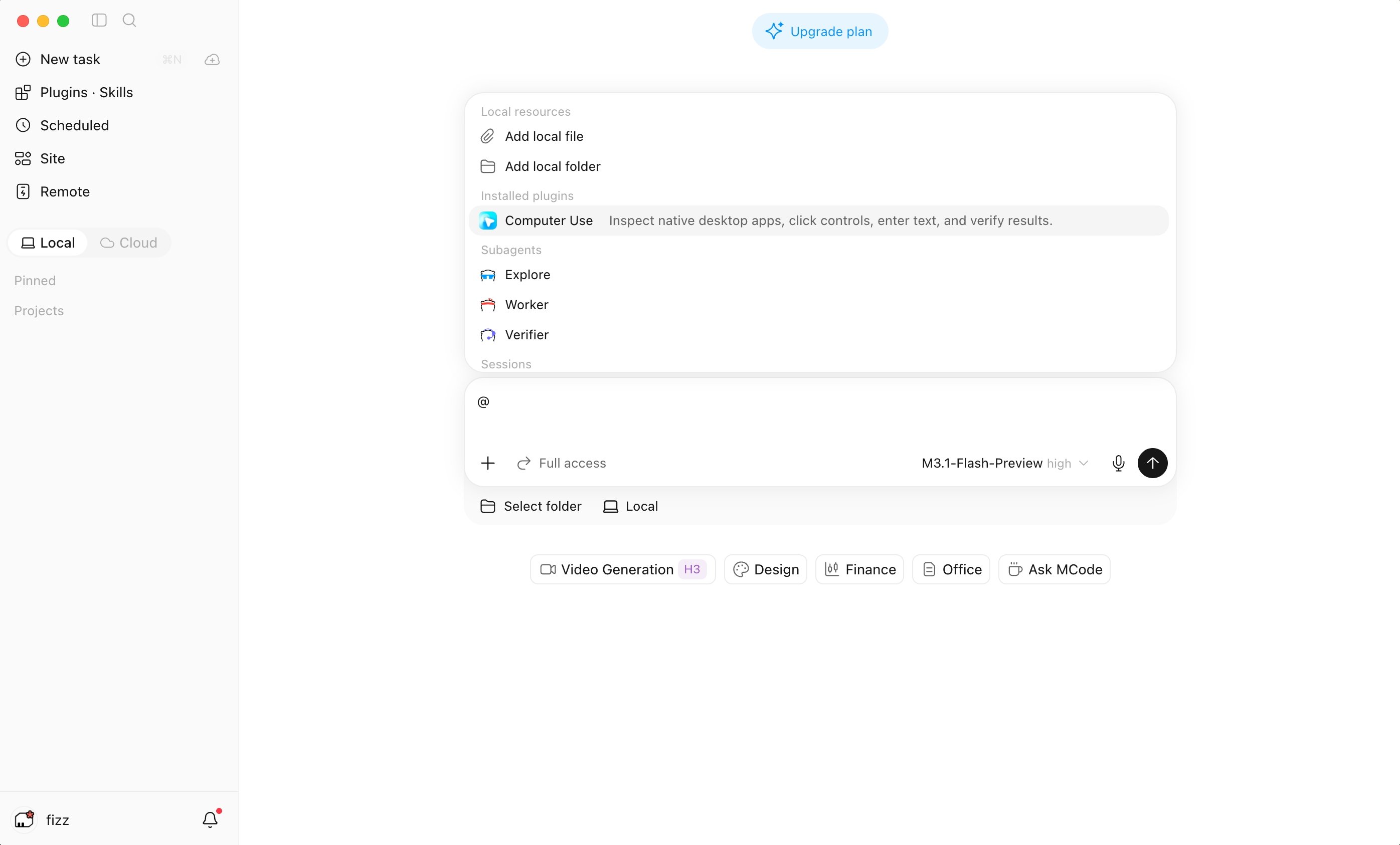
@ suggestions of the input box once the plugin is enabled and permissions are ready.Turn It On in a Conversation
For one conversation
Type@ in the input box, pick Computer Use, and send your message. The conversation keeps Computer Use for every following message, so you only need to @ it once.For all conversations
Open the Computer Use plugin details in the marketplace and turn on Enable Computer Use in conversations by default. Local conversations can then use Computer Use from the next turn without@.Turning this off later keeps Computer Use in conversations where you already selected it with @. The default covers local interactive conversations only. Scheduled tasks, subtasks, IM channel conversations, and conversations on SSH dev machines or in the cloud do not get Computer Use from it.Turn it off
Disabling or uninstalling the Computer Use plugin clears the selection in every conversation. After you enable the plugin again, select it with@ again. Switching accounts stops any Computer Use session in progress.While It Runs
- When an app needs to be operated in the foreground, a blue glow appears along the edges of every display, a MiniMax Code is using your computer bar appears at the top of the screen, and the MiniMax Code window minimizes so it does not cover the target
- Actions are shown with a separate cursor, and your own mouse pointer stays visible
- When an action may take keyboard focus, the conversation shows a foreground operation notice with the target app
- The preview panel on the right shows the desktop or the app being operated in real time, and you can hide it at any time. On macOS, the live preview needs Screen Recording permission for MiniMax Code itself and takes effect after restarting the app. This permission is optional and does not affect Computer Use
Stop Computer Use
- Click Stop conversation on the bar at the top of the screen to end the current turn and release control of the computer
- Stopping the current turn in the conversation does the same
- When the turn finishes, fails, or is stopped, the edge glow and the bar close right away
Good Fit For
- Operating local apps that have no API or command-line entry
- Flows that require switching between several apps
- Settings and form filling that are only available in the interface
Not Supported
- Linux
- Conversations on SSH dev machines
- Scheduled tasks, subtasks, and IM channel conversations
- Controlling the same computer from the desktop app and the TUI at once. Only one of them can use Computer Use at a time; the other reports that the computer is busy until the current action ends
FAQ
Computer Use does not appear when I type @
Computer Use does not appear when I type @
Make sure the Computer Use plugin is enabled in the marketplace. On macOS, Screen Recording and Accessibility permissions must also be granted. If the plugin was disabled and enabled again, select it with
@ again. Computer Use is also hidden from the list when its component is unavailable; see “It says Computer Use is temporarily unavailable or Restricted (parental controls)”.The permission is on, but it still says it is missing
The permission is on, but it still says it is missing
Select the app in the System Settings permission list and click − to remove it. Then drag the app from the guide back into the list and turn on its switch. Restart the app if macOS asks you to. If the Screen Recording or Accessibility switch in System Settings is grayed out and cannot be turned on, Parental Controls or MDM on this device restrict these permissions. Ask your device administrator to allow them.
It says the computer is busy
It says the computer is busy
Another desktop conversation or TUI session is controlling the computer. Wait for it to finish, or stop its current turn, then try again.