

MiniMax Code Web is the browser client for MiniMax Code. You open a local address in your browser and give instructions; the agent runs in a local process. Reading files, running commands, editing code, opening a browser, and permission approvals all happen on your own machine.WebUI is a peer of the desktop app and the terminal client, not a web wrapper around either one. All three implement the same session protocol, so your account, session history, skills, plugins, memory, and scheduled tasks are the same wherever you open them.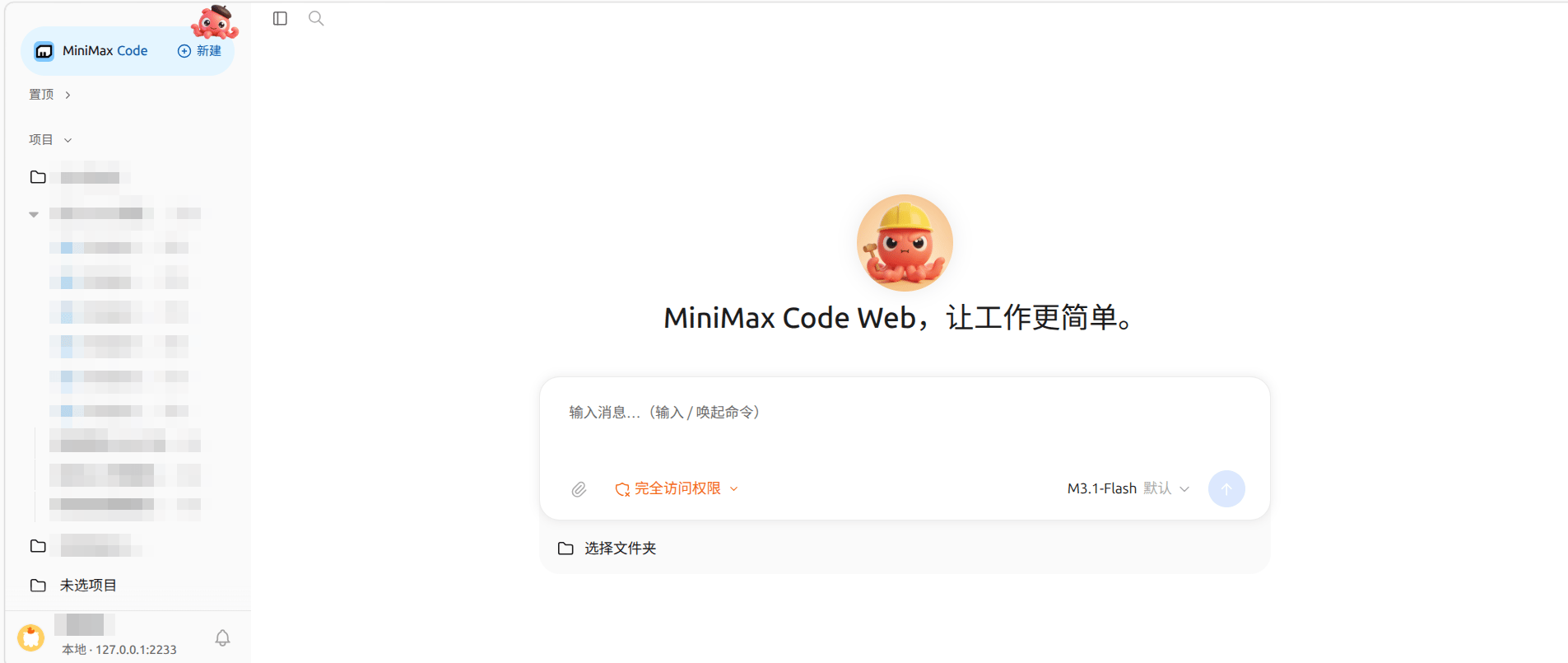
WebUI is still evolving. Labels in the UI follow the version installed on your machine.
Screenshots on this page show the Chinese UI.
What it’s good for
Install and start
WebUI is a local service that only listens on127.0.0.1.mcode-webui uses port 2233 by default. To use another port, set the WEBUI_SERVER_PORT environment variable. The service only binds to loopback addresses and can’t be exposed directly to the network.Open the page
Visithttp://127.0.0.1:2233/ in your browser. The page carries an access credential generated for this launch and uses it to connect to the local WebSocket service. The credential exists only in that page configuration and is never written to disk.Create your first task
- On the home page, click Select folder and choose the project directory you want to work on. Sessions without a directory are grouped under No project.
- Type a goal in the input box, for example “Get this repo running and fix the failing tests.”
- Click send. The agent reads files and runs commands in that directory. When an action needs permission, a confirmation appears above the input box; click approve.
Core workflows
Work modes
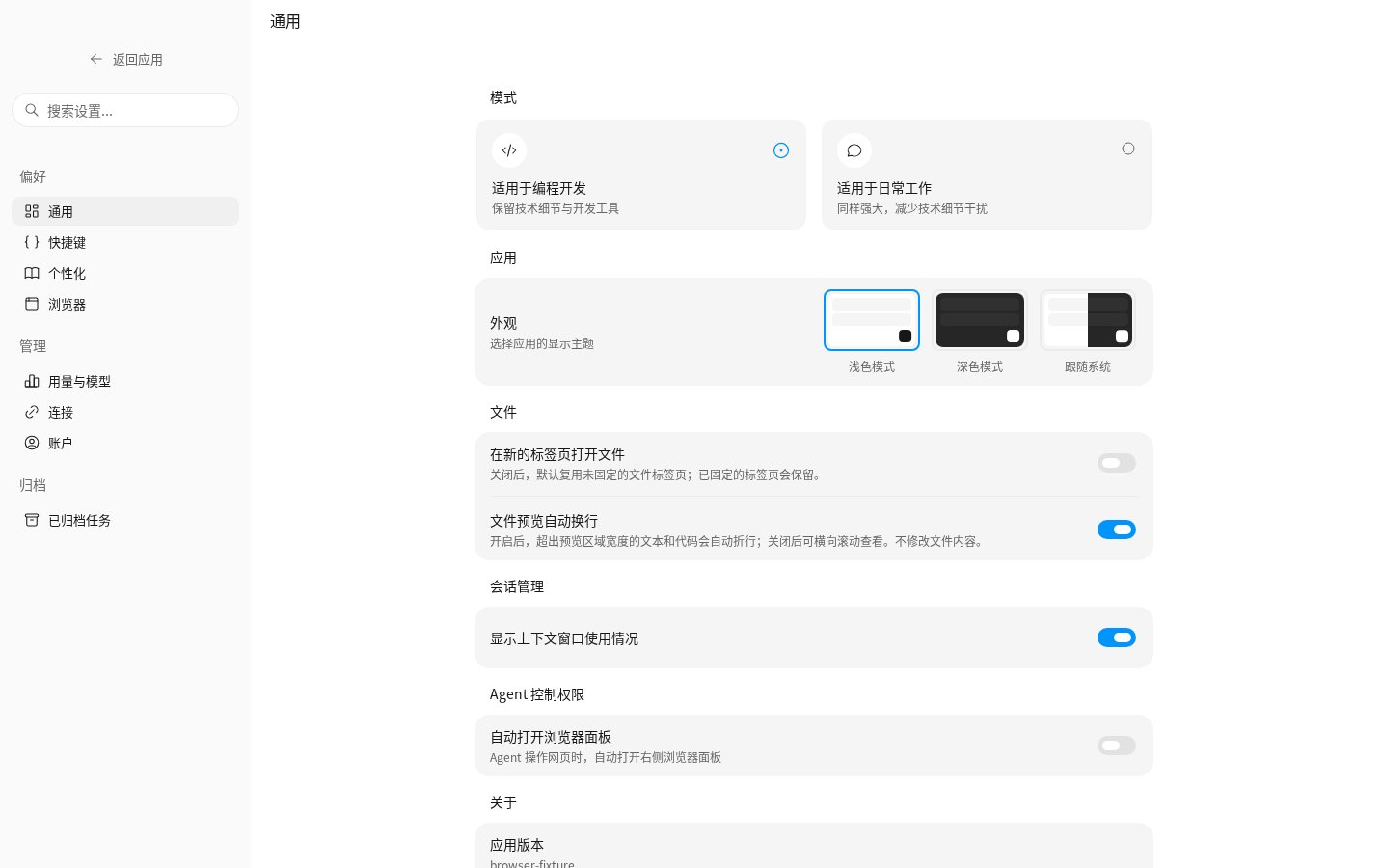
Switch in Settings → General → Mode:Projects and sessions
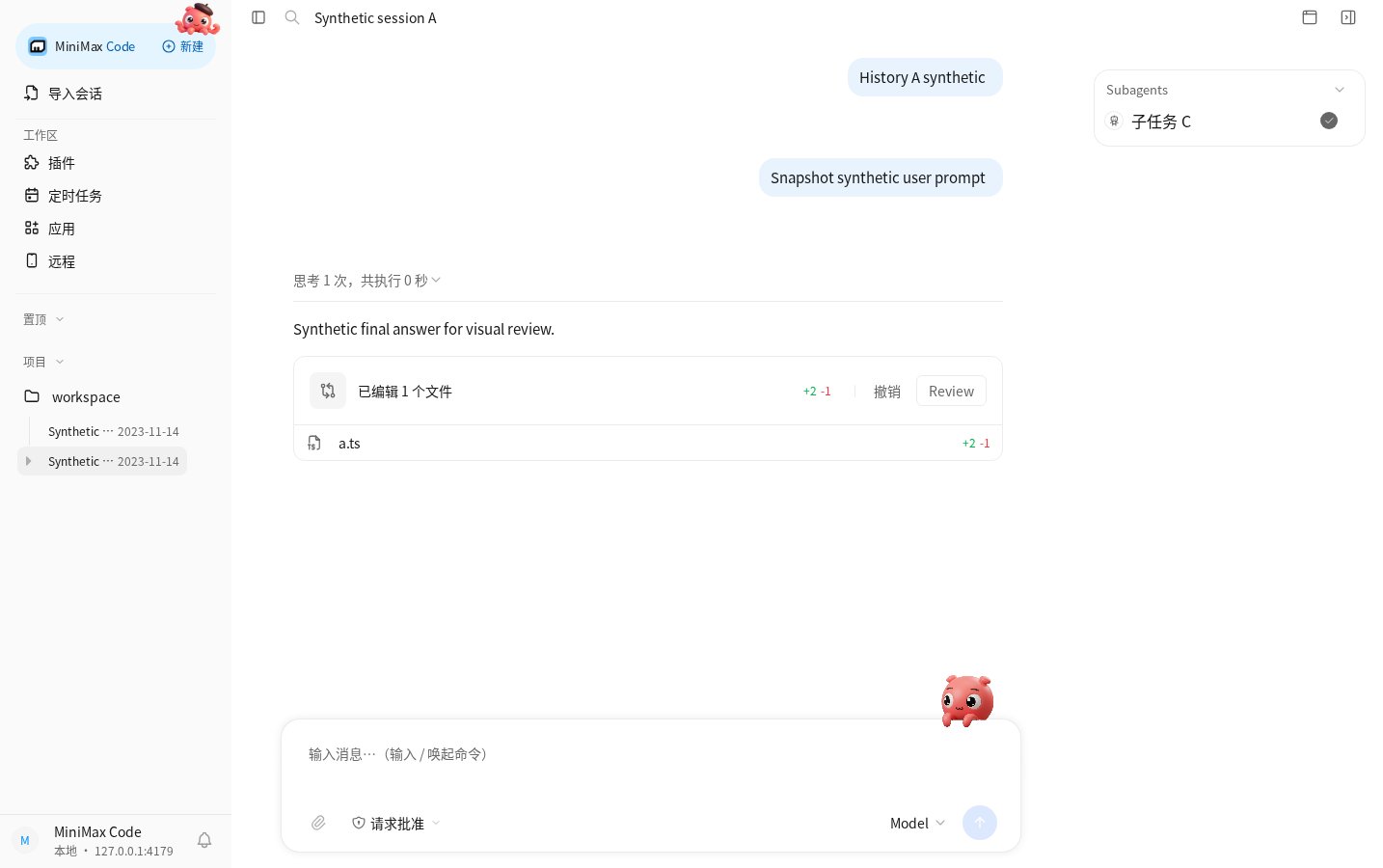
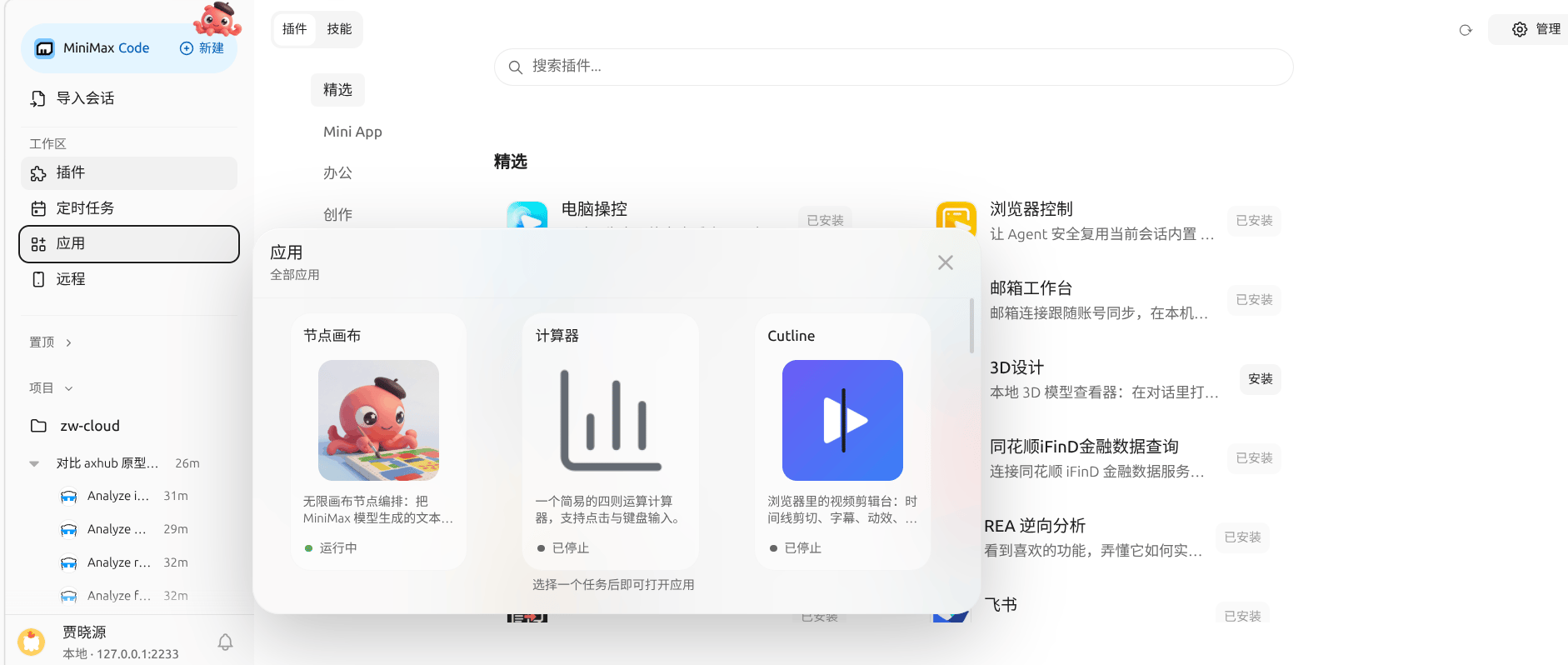
Sessions are grouped by project directory. The agent can only see a directory’s files, commands, and changes after you select it.The left sidebar has New, Import session, workspace entries (Plugins, Scheduled Tasks, Apps, Remote), Pinned, and project groups. Account and settings are at the bottom.Permissions
The permission switch is at the bottom left of the input area:When the agent needs clarification it sends a questionnaire, and when it needs permission it shows a confirmation card. You answer both right in the conversation.
Code review
There are three ways to review:- Type
/and choose thecode-reviewcommand to review the whole repository. - Click Review on a change card in a reply to see that turn’s diff.
- Open the Changes tab in the workspace panel to review all changes by file, and undo or roll back a turn.
Workspace panel
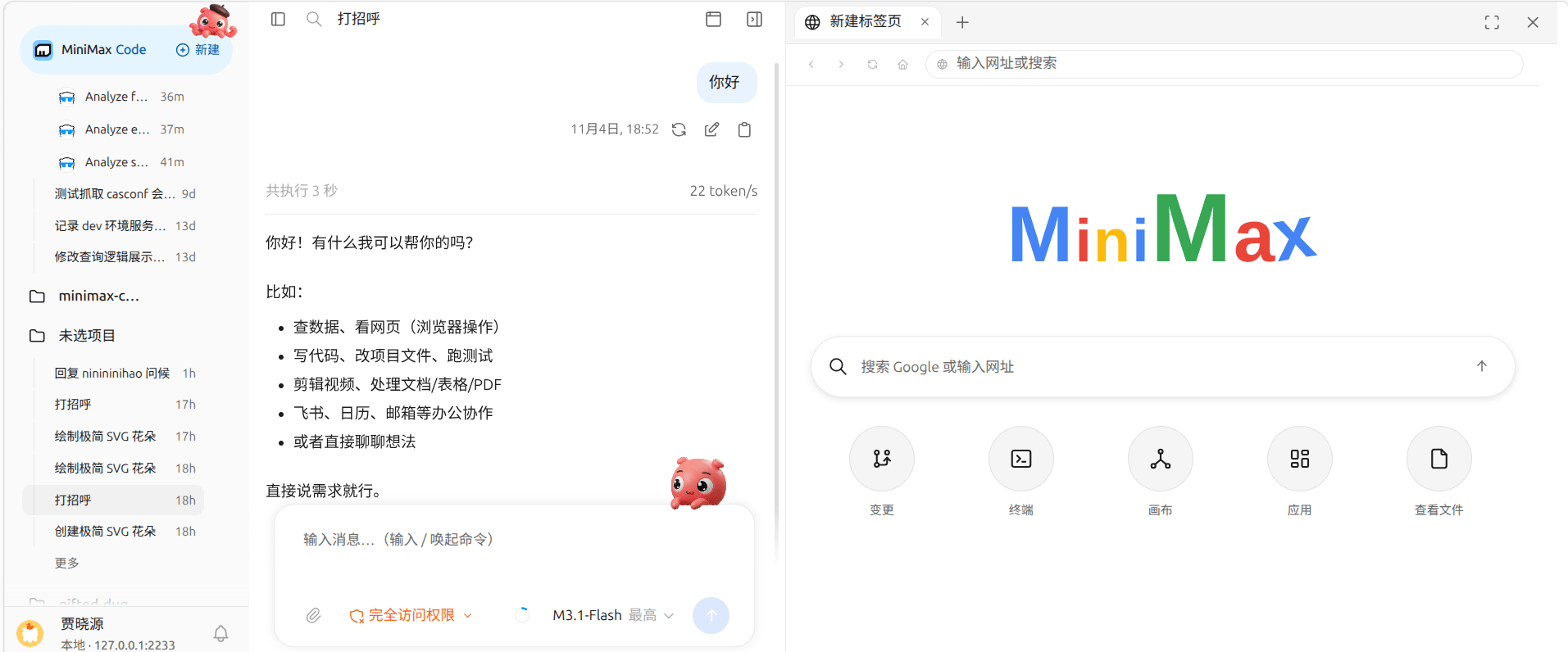
The workspace panel sits to the right of the conversation as a row of tabs. Each tab is a fixed slot whose content can be replaced in place: if you open a page in a new tab and then navigate elsewhere, it stays the same tab.A new tab offers five entries (Changes, Terminal, Canvas, Apps, Files) and an address bar for typing a URL.
Built-in browser
Choose from three browsers: the isolated browser (default, a separate in-process environment), Microsoft Edge, or Google Chrome. Edge and Chrome need authorization in settings first; after that the agent can operate real browser pages.Appearance and shortcuts
Settings → General → Appearance switches between light, dark, and system. The personalization page has theme settings, and the shortcuts page lets you view and rebind input shortcuts.Agent capabilities
- Goal: Use
/目标(Goal) to give the agent a verifiable end goal. It keeps going until the goal is met or it gets blocked. - Agent Team and custom agents: Team mode splits work across several agents that check each other. In plugin management you can assign an agent to run a specific plugin.
- Mini Apps: Apps lists the Mini Apps available on this machine; click one to open it in a tab on the right.
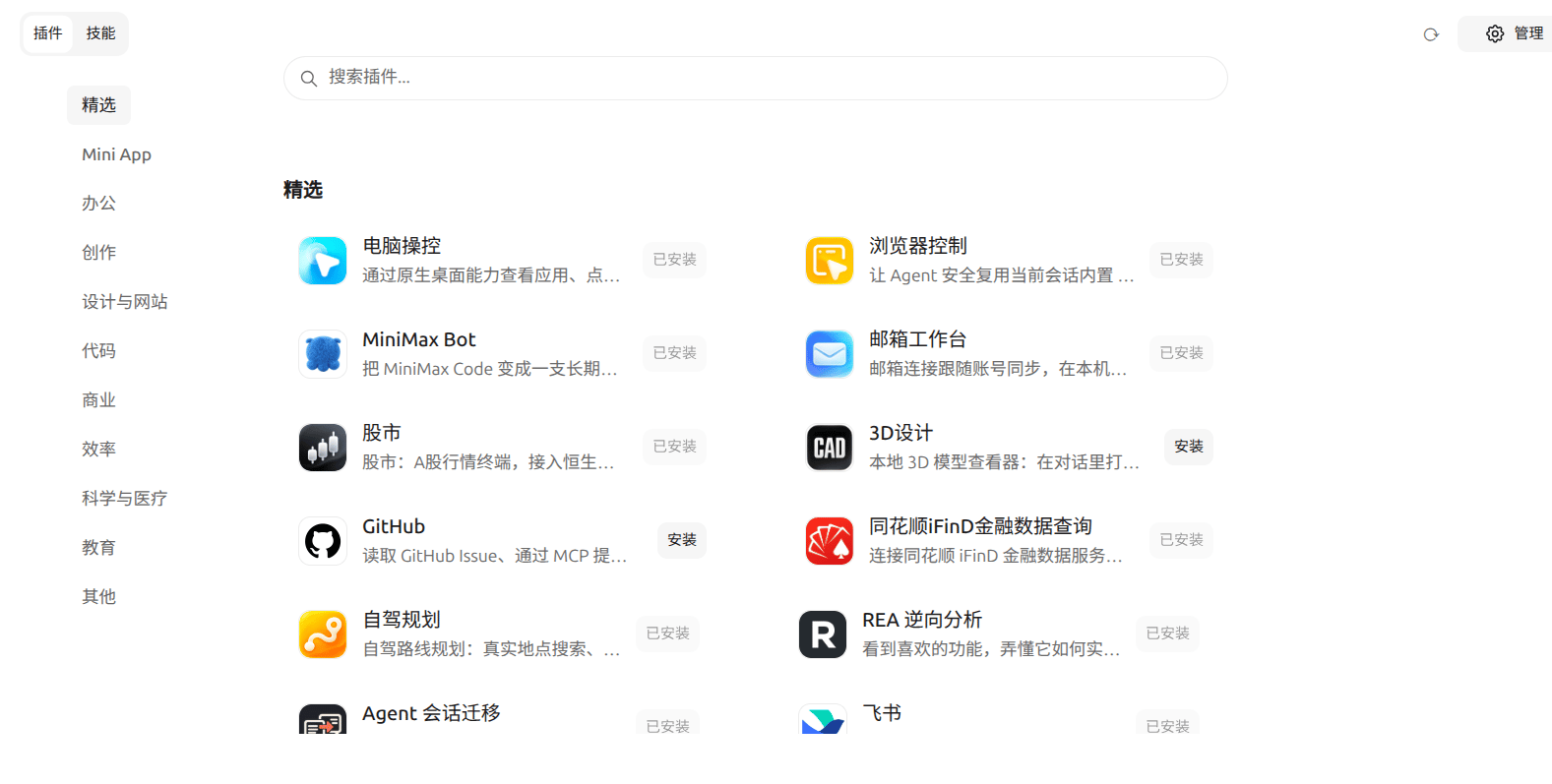
- Plugins and skills: Plugins has two tabs, Plugins and Skills. Browse plugins by category, see install status on each card, or import a plugin from a GitHub repository.
- MCP servers: Connect external tools and data sources in plugin management. Local stdio and remote HTTP transports are supported; HTTP lets you set headers, parameters, and more.
- Memory: Maintain memory and global instructions in settings. Memory keeps long-term preferences and project conventions; global instructions apply to every session.
Automation and remote
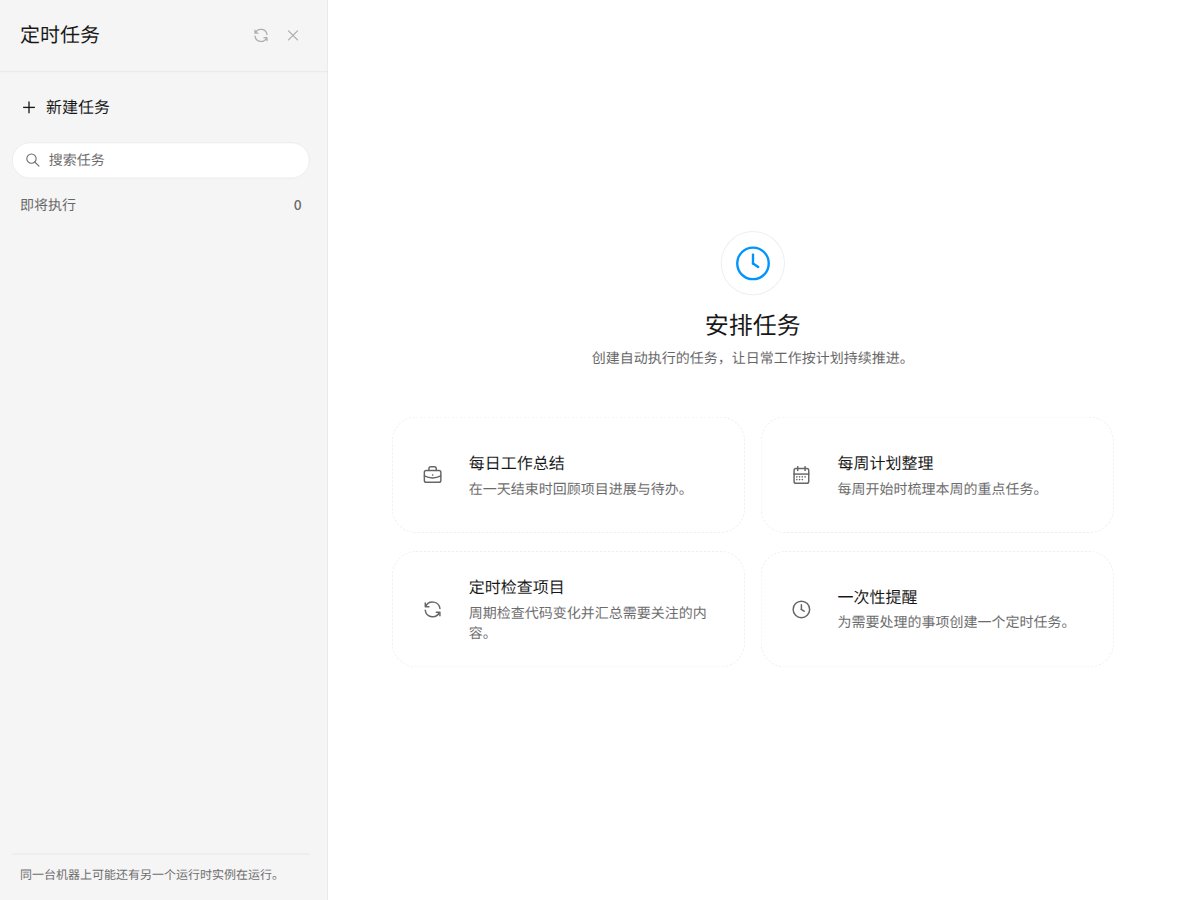
Scheduled tasks
Tasks run on schedule and write results back to their session. Four templates are built in:When editing a task you set its name, request, and the agent that runs it. The list shows upcoming tasks and past runs.
Remote control and IM
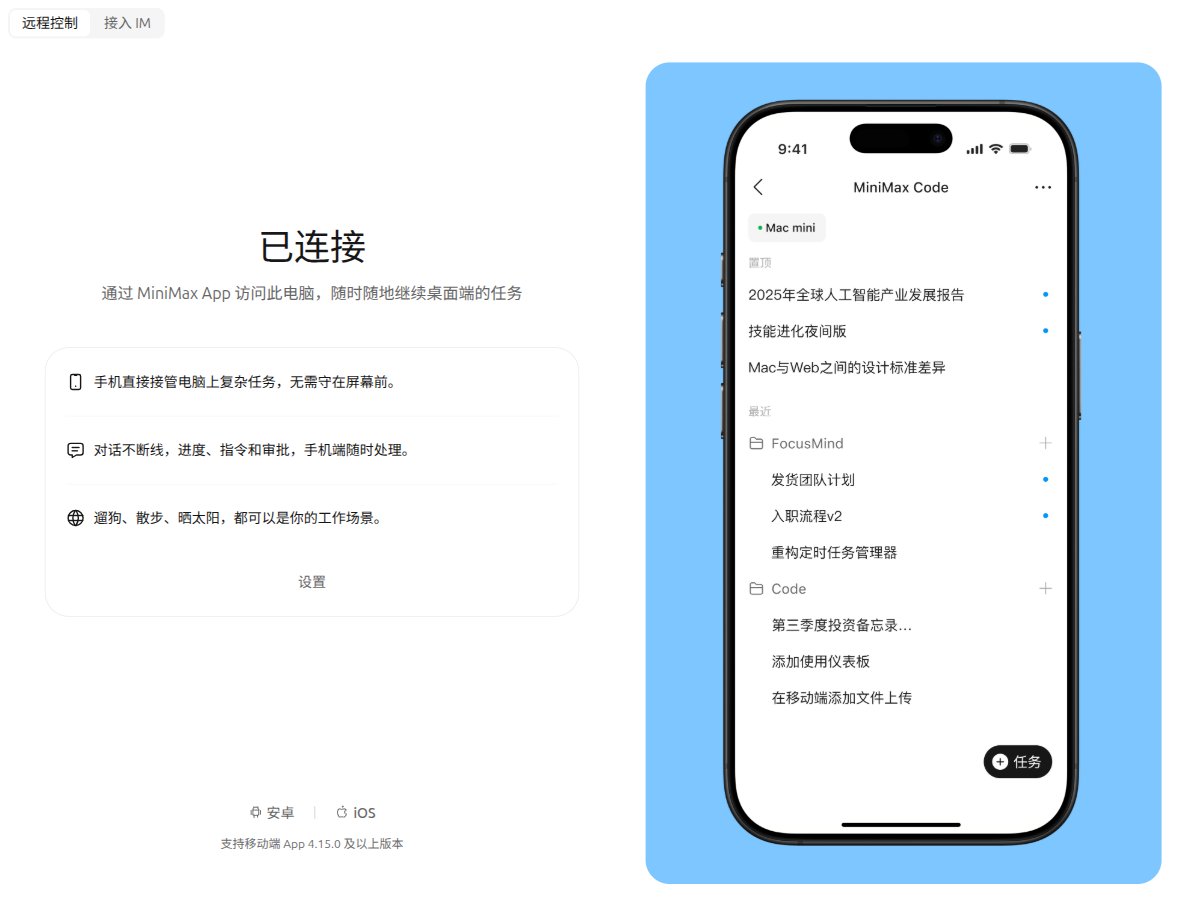
The Remote page has two tabs:- Remote control: Pair with the mobile app. The pairing code is single-use, never written to disk, and never sent back to the browser. After the service restarts it reconnects on its own, so you don’t need to pair the phone again.
- IM: Bind IM channels such as Feishu or WeChat to the local agent. You can then give tasks, see results, and approve permissions from chat. Channel status and message filter rules are managed here too.
Models and account
- Usage: Settings → Usage & Models shows quotas such as the 5-hour limit, weekly limit, and video limit, plus context window usage. The account menu has a daily check-in; consecutive check-ins earn points.
- Models: Use MiniMax-hosted models, or connect your own model source with a Base URL, API key, and model name. Candidate model discovery and connectivity tests are supported.
Differences from the desktop app
Known limitations
- Some services are desktop-only, and WebUI hides their entries.
- The progress panel is unavailable when the window is narrower than 1080px.
- When the sidebar is collapsed, navigation items aren’t shown.
FAQ
The page keeps showing “Loading projects and sessions”?The service usually isn’t ready or the connection was refused. Check the connection indicator in the status bar at the bottom left; refreshing the page fetches a new credential.The agent says no model is available?Check the model source and credentials in Settings → Usage & Models.Can’t find a feature?Some capabilities sit behind a switch. Check authorization and enablement in Settings → Browser or on the plugin and MCP pages.Can I access it from another machine?The service only listens on loopback. To reach it from another machine, set up your own secure port forwarding or tunnel. Don’t expose it directly to the internet.Can it share an account with the terminal client?Yes. The data directory~/.minimax (override with MINIMAX_DATA_DIR) shares the same login, skills, and plugins with the CLI.