Image to 3D Workflows from Reference to Review

Turn an image into a clearer 3D modeling brief with MiniMax Code. Specify shape, scale, views, and intended use, then validate any model produced by a compatible modeling tool. A rendered image alone is not a 3D asset.

Plan Your Image to 3D Workflow

Start with a text brief in MiniMax Code. Provide authorized source images there after confirming a suitable tool. This page does not upload or process images.

Choose a starting point

Four References for a Better 3D Brief

Generated concept renders and design studies only. These images are not downloadable meshes, verified topology, or proof of native image-to-3D conversion.

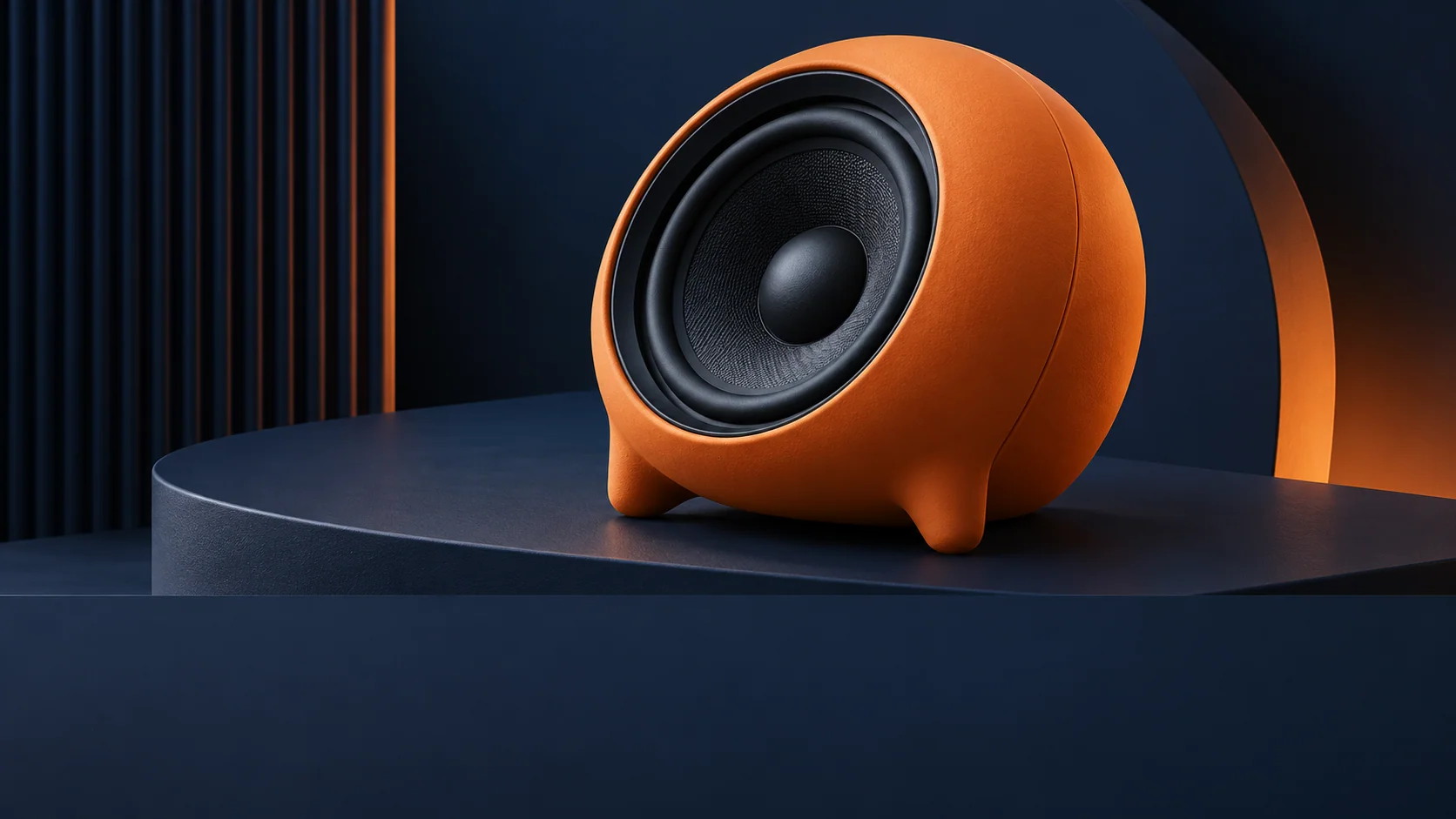
Illustrative image to 3d concept: product shape study. A rounded speaker concept focuses on silhouette and material. A modeling brief must separately define dimensions, unseen surfaces, and construction.

A rounded speaker concept focuses on silhouette and material. A modeling brief must separately define dimensions, unseen surfaces, and construction.

Bridge the Gap Between a Picture and an Asset

Image to 3D work needs more than a convincing render: references, assumptions, geometry, and file validation all matter.

SHAPE AND SCALE

Create Modeling Briefs

Describe the object’s silhouette, dimensions, materials, and intended use. MiniMax Code can help separate visible evidence from guesses about the back, underside, and internal structure. Add measurements and multiple authorized views when available; one photograph rarely defines every surface.

Try Now

Conceptual workflow illustration for image to 3d: create modeling briefs.

GAME ASSET PLANNING

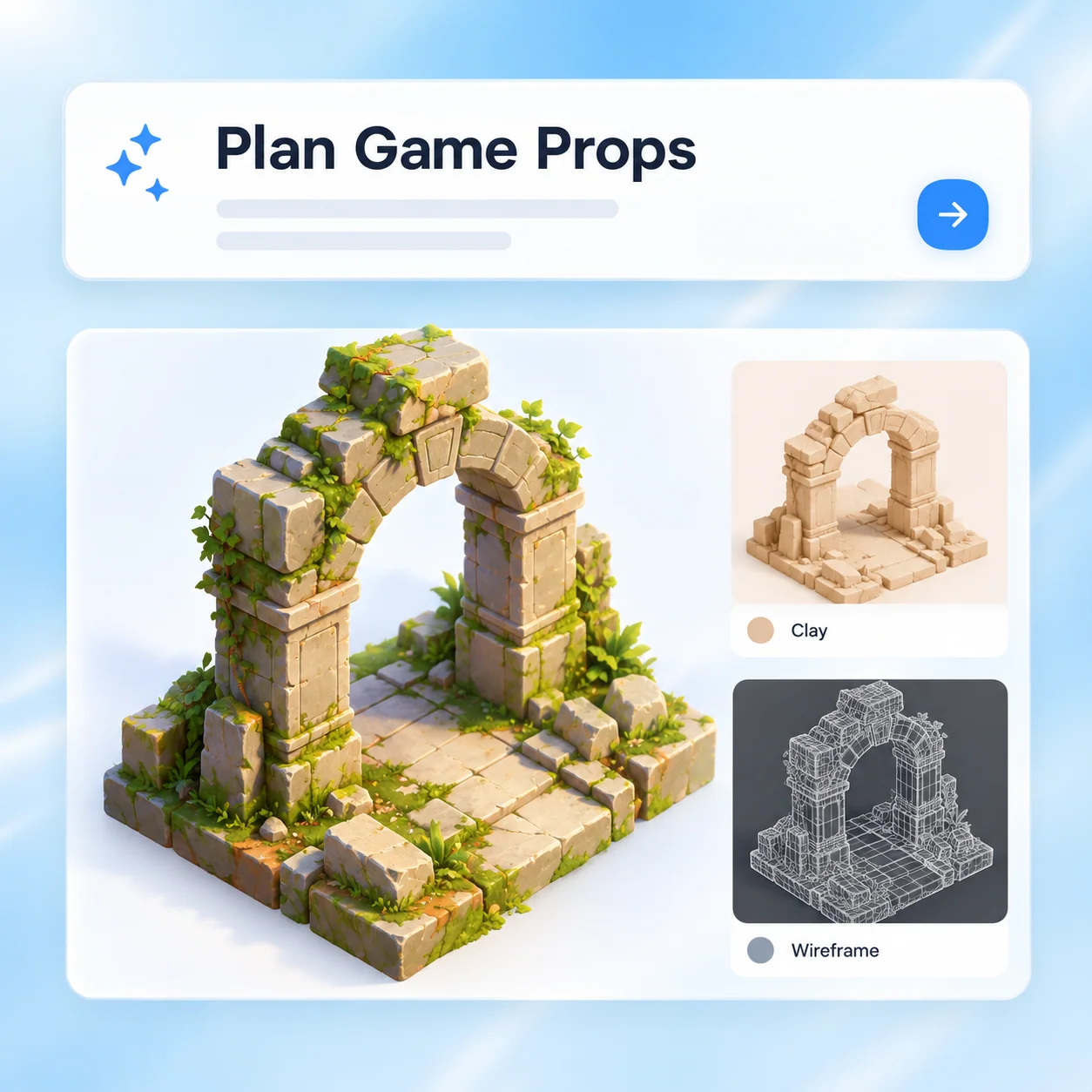
Plan Game Props

Specify target engine, scale, texture needs, and performance constraints before choosing a modeling workflow. A concept render can communicate style, but it does not demonstrate clean topology, UVs, collisions, or a usable asset. Confirm the relevant tool and inspect its output in the target application.

Try Now
Conceptual workflow illustration for image to 3d: plan game props.

DELIVERABLE VALIDATION

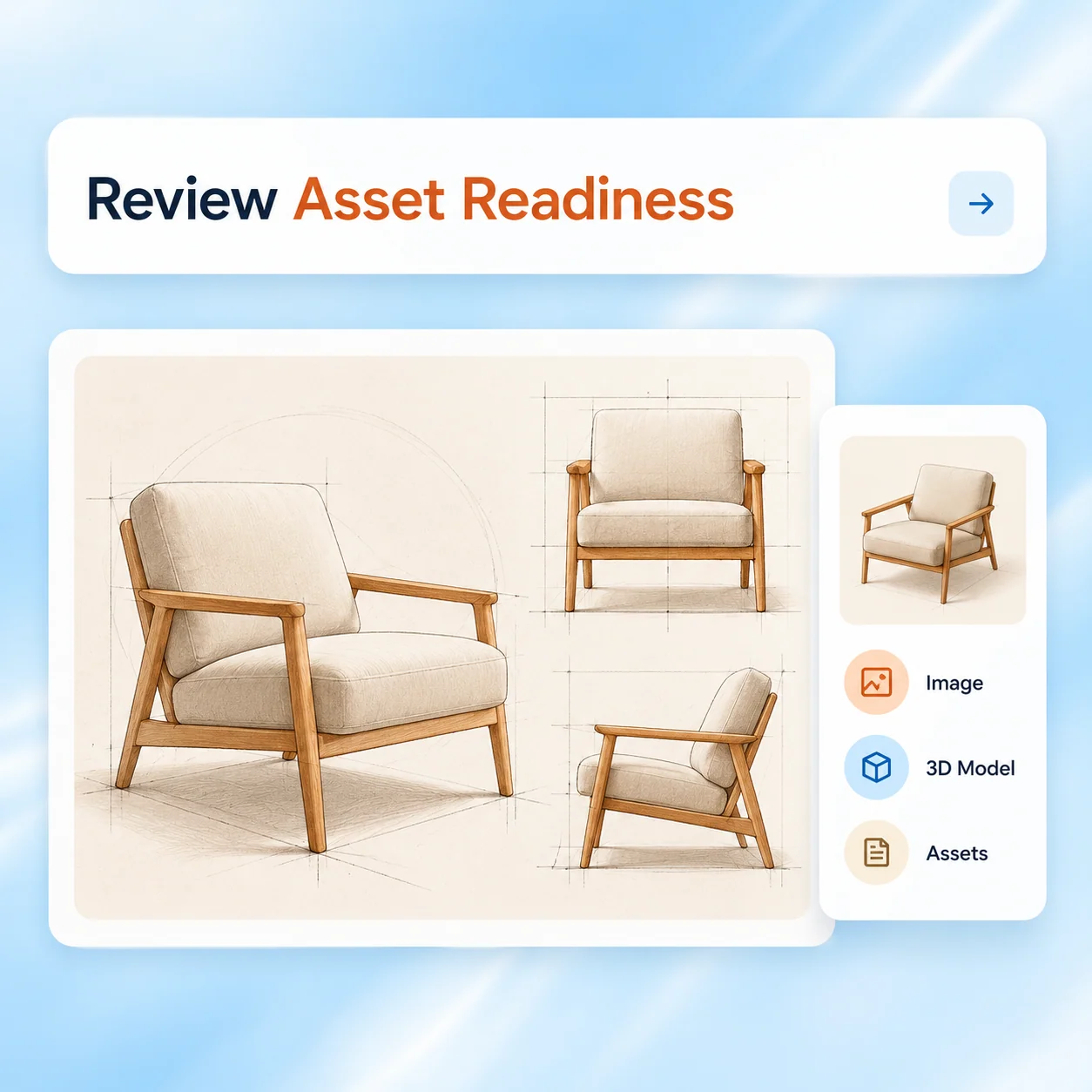
Review Asset Readiness

Open the actual model file in a compatible viewer or editor and inspect dimensions, normals, materials, missing surfaces, and format compatibility. Requirements for visualization, games, editing, and 3D printing differ. MiniMax Code can help organize these checks; a screenshot is not evidence that the file passes them.

Try Now
Conceptual workflow illustration for image to 3d: review asset readiness.

A 3D-Looking Image vs. a Usable Model

This distinction is essential: this page provides workflow planning, not a verified native image-to-mesh converter.

Unstructured approach

Deliverable
A flat rendered image
Hidden surfaces
May not be represented
Scale
Looks plausible in a picture
Materials
Appear convincing in one view
Readiness
Judged by appearance alone

Guided workflow

Deliverable
A model file opened and inspected in a compatible tool
Hidden surfaces
Needs explicit geometry and documented assumptions
Scale
Uses checked dimensions and units
Materials
Need usable assignments and textures where required
Readiness
Validated against the target application and use case

Plan an Image to 3D Workflow in Four Steps

Use the product for the actual task. The diagrams below explain the workflow and are not screenshots of available controls.

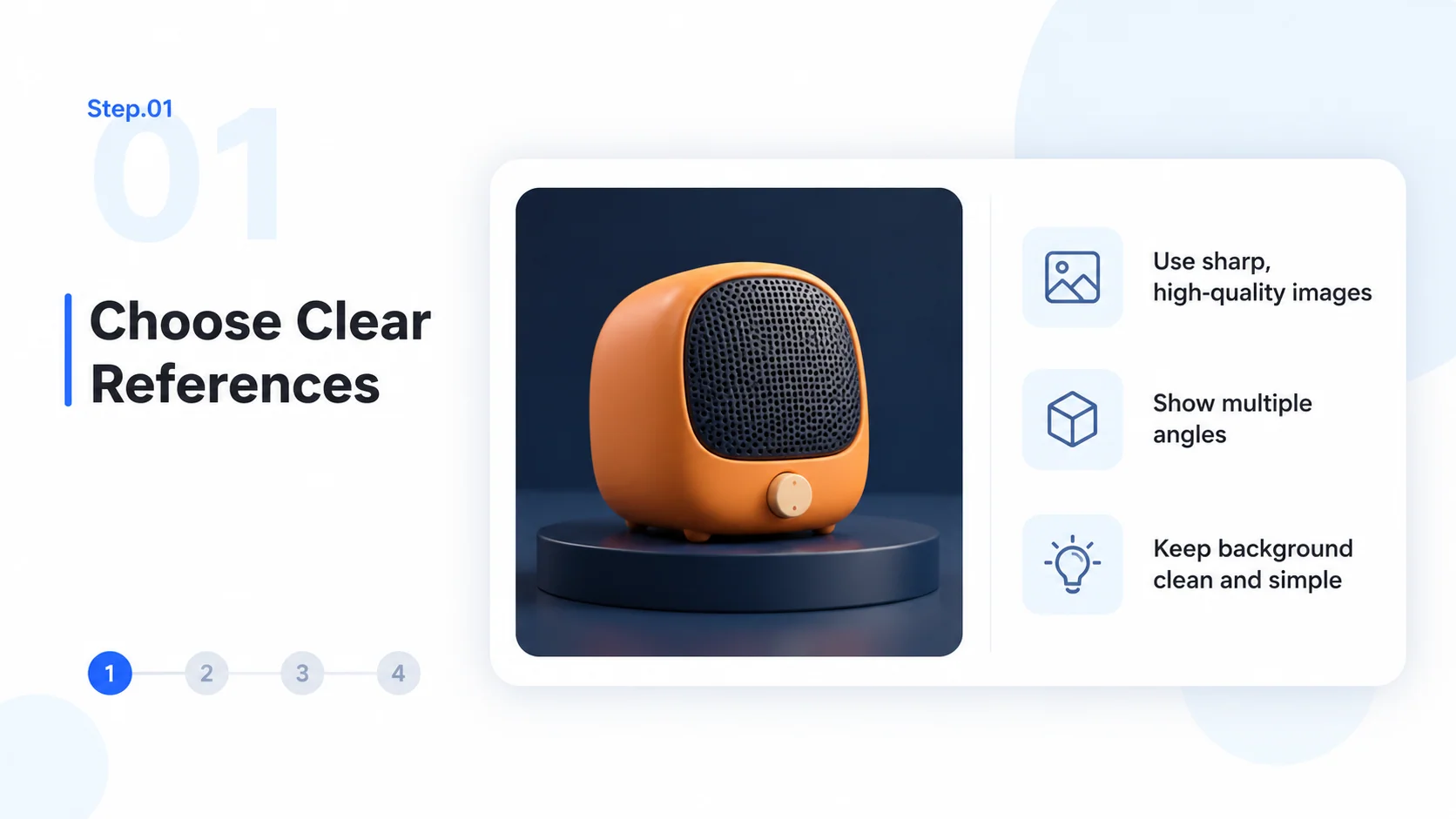
  1. Step.01

    Choose Clear References

    Gather authorized images with an unobstructed object and useful views. Separate observed details from assumptions about hidden surfaces.

    Step 1 conceptual diagram: choose clear references for the image to 3d workflow.
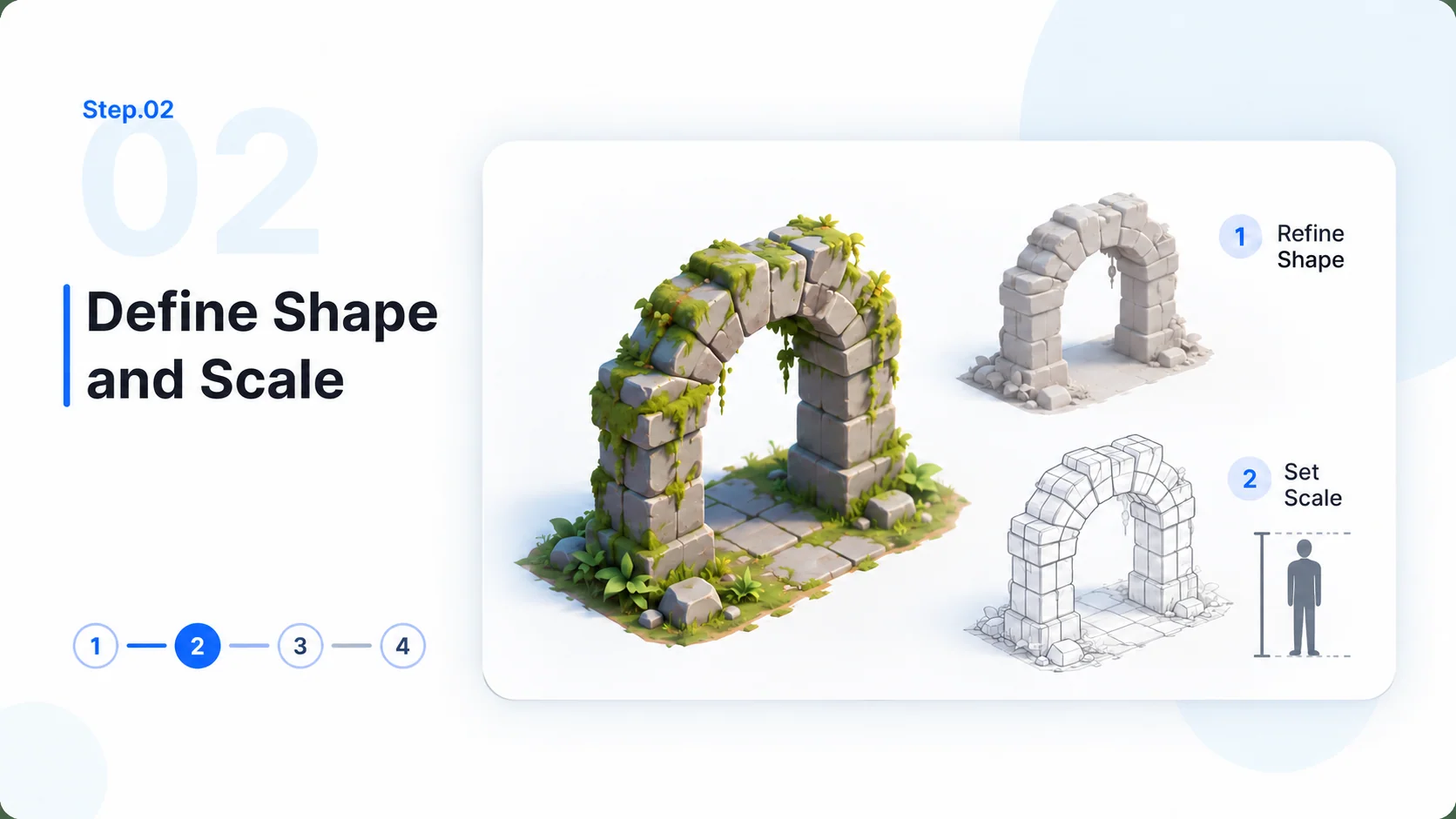
  2. Step.02

    Define Shape and Scale

    Specify dimensions, material, intended application, and deliverable requirements. Confirm a compatible modeling tool before attempting conversion.

    Step 2 conceptual diagram: define shape and scale for the image to 3d workflow.
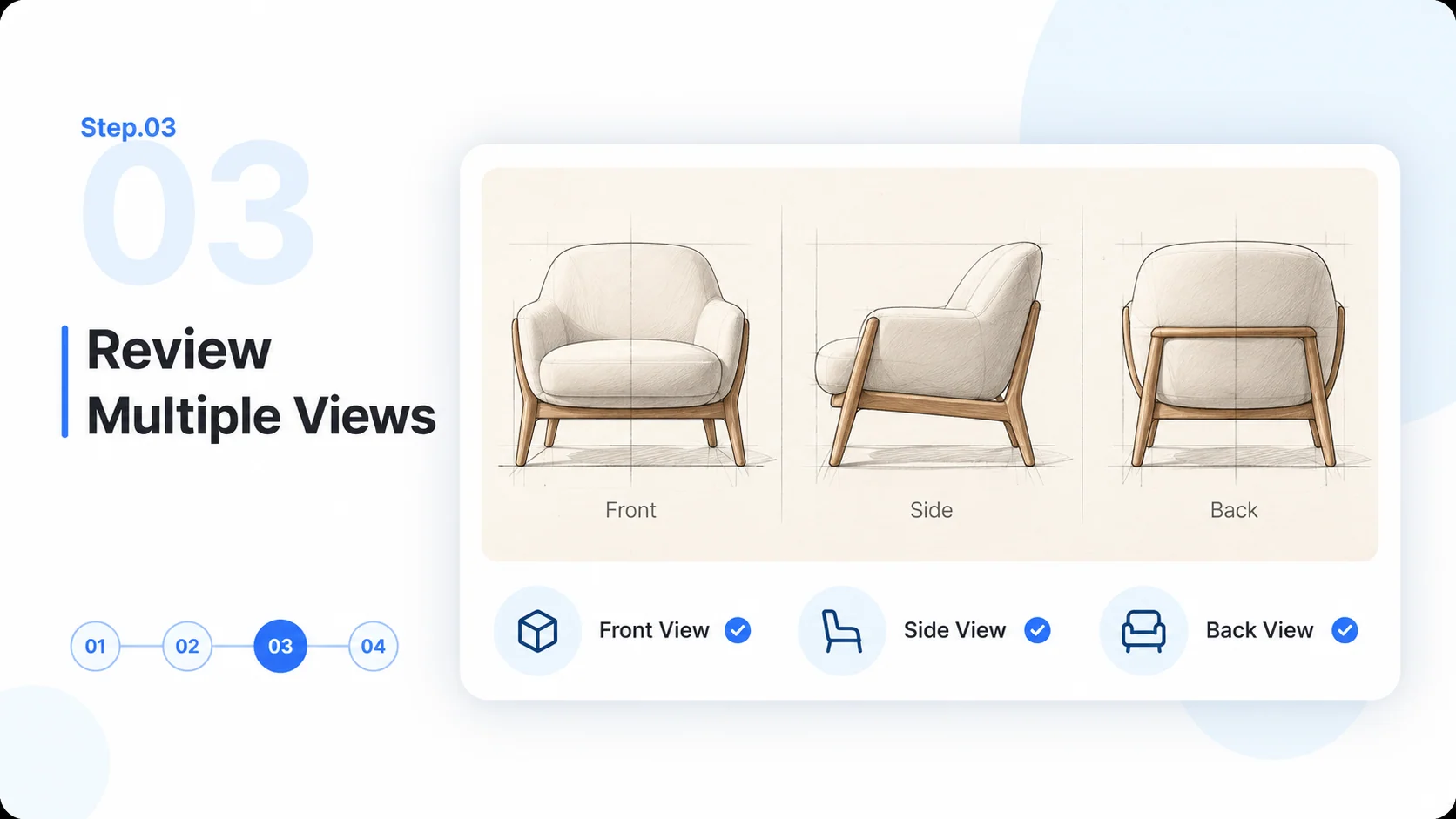
  3. Step.03

    Review Multiple Views

    Inspect front, side, rear, and underside geometry in the modeling tool. Compare proportions with references and resolve missing or inconsistent surfaces.

    Step 3 conceptual diagram: review multiple views for the image to 3d workflow.
  4. Step.04

    Validate the Model File

    Open the actual export and check units, geometry, materials, and compatibility. For printing or game use, perform the additional checks required by that workflow.

    Step 4 conceptual diagram: validate the model file for the image to 3d workflow.

Image to 3D FAQ

Practical answers about source images, workflow limits, and reviewing the final deliverable.

Start with a Reference. Define the Real Deliverable.