AI Image Generator for Ideas You Can See

Describe a subject, style, and composition, then create an image in MiniMax Code. Explore product visuals, editorial scenes, illustrations, and imaginative environments with a brief you can refine—not another layout template.

Start Your AI Image Generator Brief

Choose an example or describe your task, then continue in MiniMax Code.

Sample prompts

Four Briefs, Four Visual Worlds

Generated concept images illustrate different creative directions. Adapt a prompt to your subject and review the result before using it.

AI Image Generator: Product Photography. Illustrative concept, not a verified customer result.

A studio-style product concept with controlled light, a simple material palette, and room for campaign copy.

Turn a Clear Image Brief into a Visual Direction

Give MiniMax Code enough creative context to make the result specific, then refine the parts that matter.

Creative Brief

Describe the Subject, Not Just the Style

Specify what belongs in the image, the intended audience, and where it will appear. Add lighting, viewpoint, materials, and a focal point so an AI image generator has a useful direction. For a product concept, distinguish the real product facts you supply from imagined styling. State what should be excluded, including unwanted lettering or branding.

Try Now
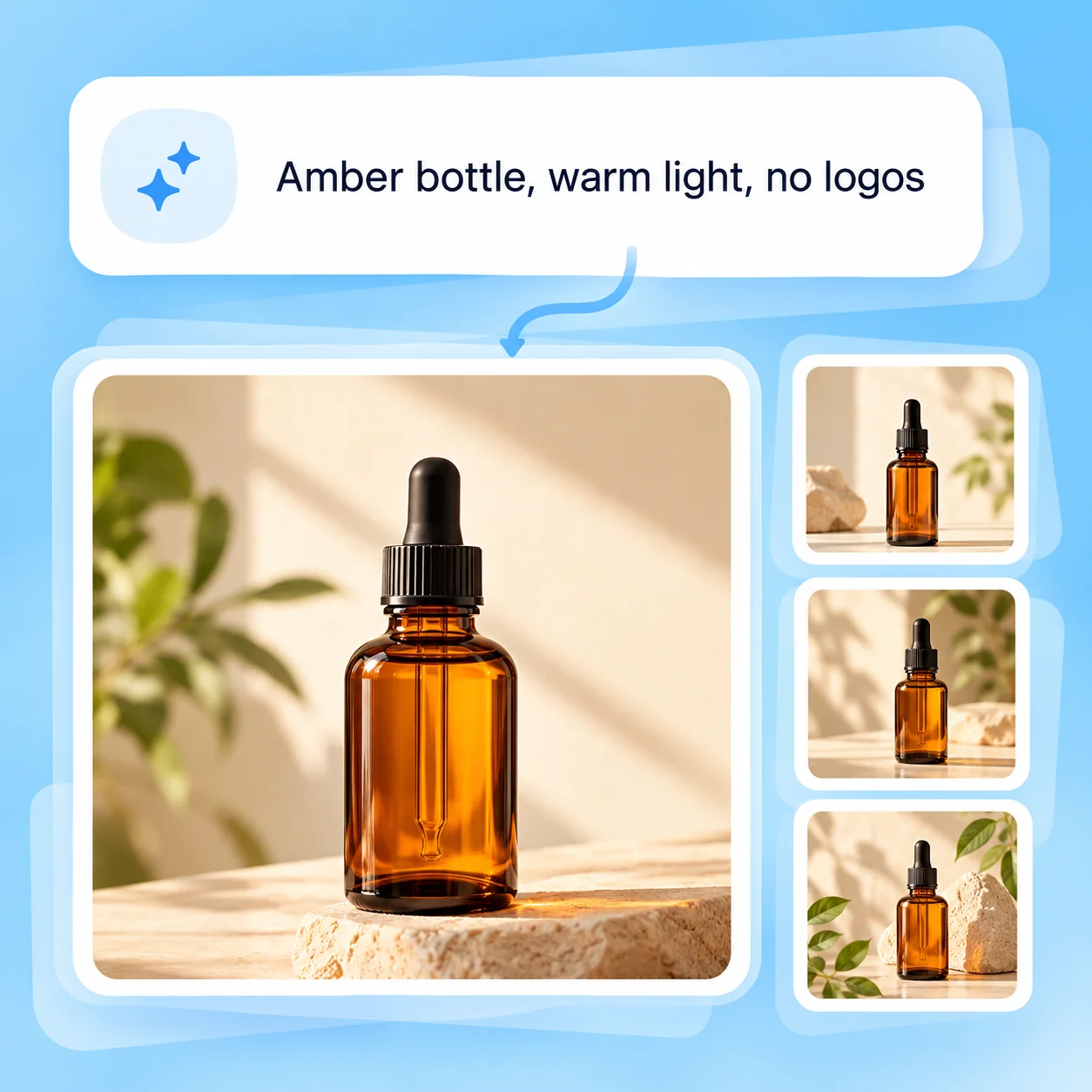
Illustrative AI Image Generator workflow: Describe the Subject, Not Just the Style.

Visual Exploration

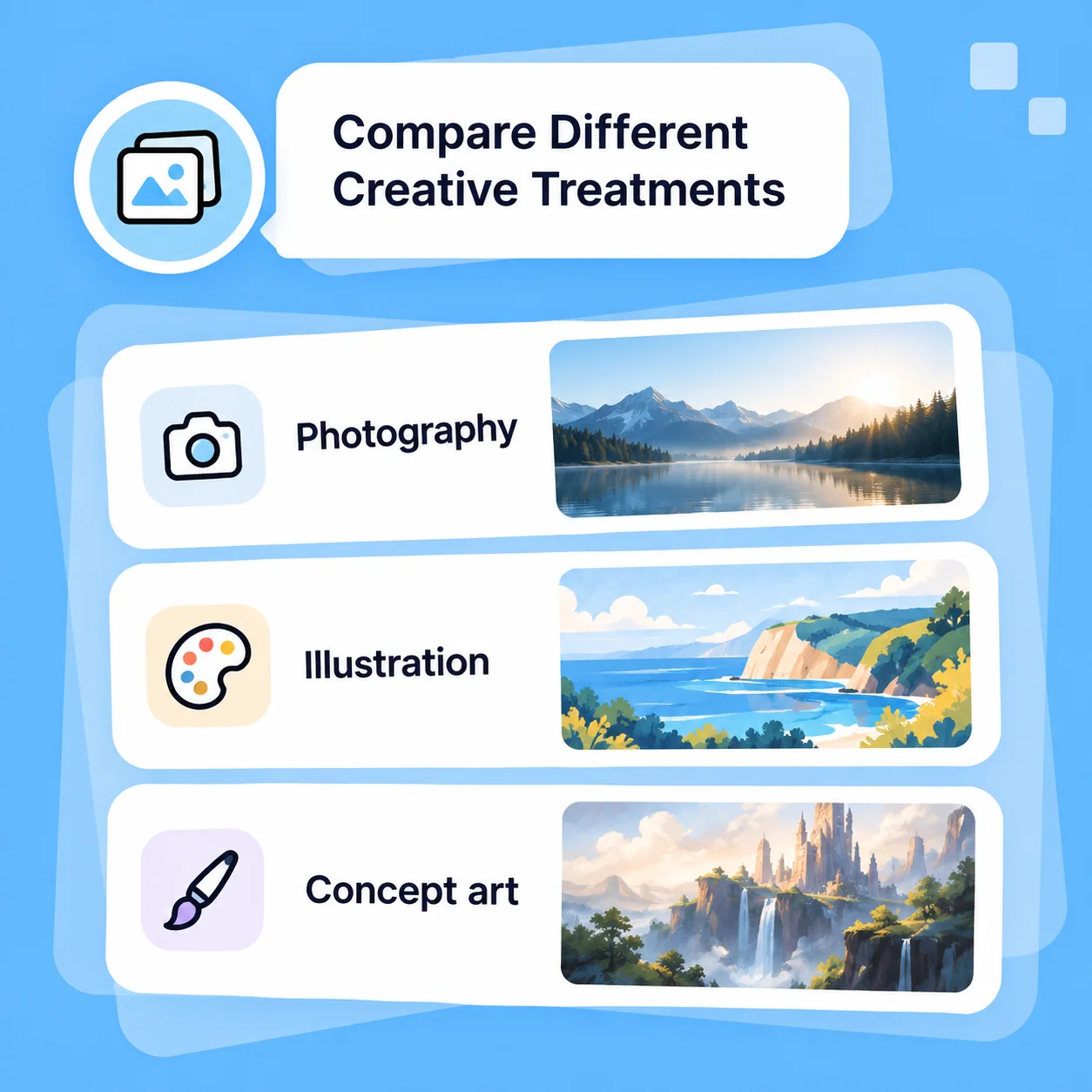
Compare Different Creative Treatments

Explore photography, illustration, or concept art for the same creative goal. Change one meaningful element at a time—such as camera angle, palette, or background—and compare the alternatives. Keep a short record of the brief that led to each direction. Consistency is something to inspect and refine, not a guarantee from a single request.

Try Now
Illustrative AI Image Generator workflow: Compare Different Creative Treatments.

Practical Delivery

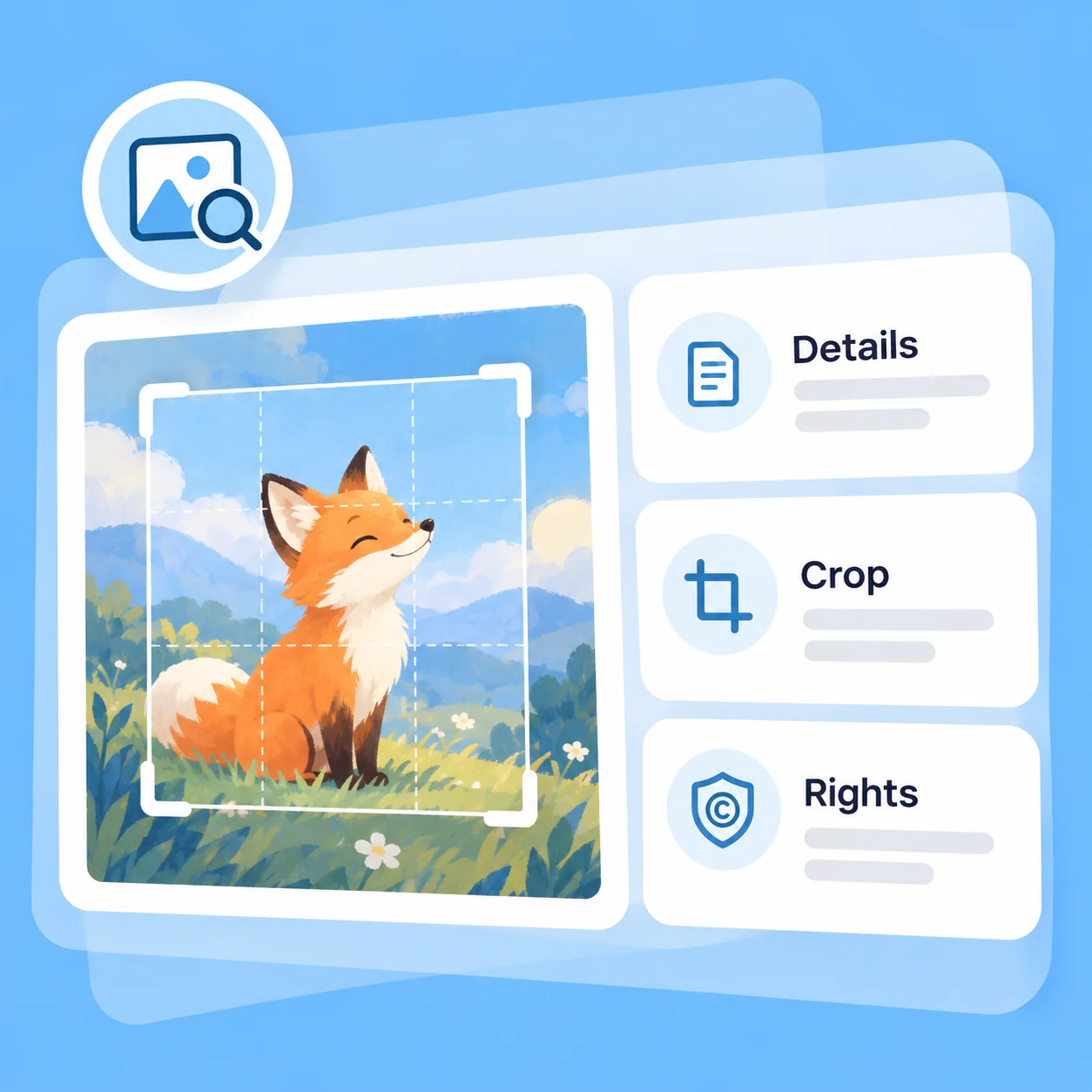
Review the Image for Its Intended Use

Check small details, unwanted text, cropping, and visual consistency before placing the image in a campaign or document. Confirm rights to reference material and any restrictions that apply to the selected generation service. Add typography and final layout in the appropriate design workflow; image generation and a complete graphic design deliverable are different tasks.

Try Now
Illustrative AI Image Generator workflow: Review the Image for Its Intended Use.

A Connected Image-Creation Workflow

A comparison of workflows, not measured performance. Review facts and outputs before using them.

Working Manually

Starting point
Search for a nearby stock image
Composition
Work around an existing crop
Style exploration
Collect unrelated references
Revision
Start another search
Quality review
Inspect details and usage rights

With MiniMax Code

Starting point
Describe the exact subject and creative direction
Composition
Include framing and negative space in the brief
Style exploration
Compare treatments against one creative goal
Revision
Refine the prompt around a specific visual issue
Quality review
Inspect generated details and applicable rights before use

Create an Image in Four Steps

Prepare a focused brief, work in MiniMax Code, and review the result before the final handoff.

  1. Step.01

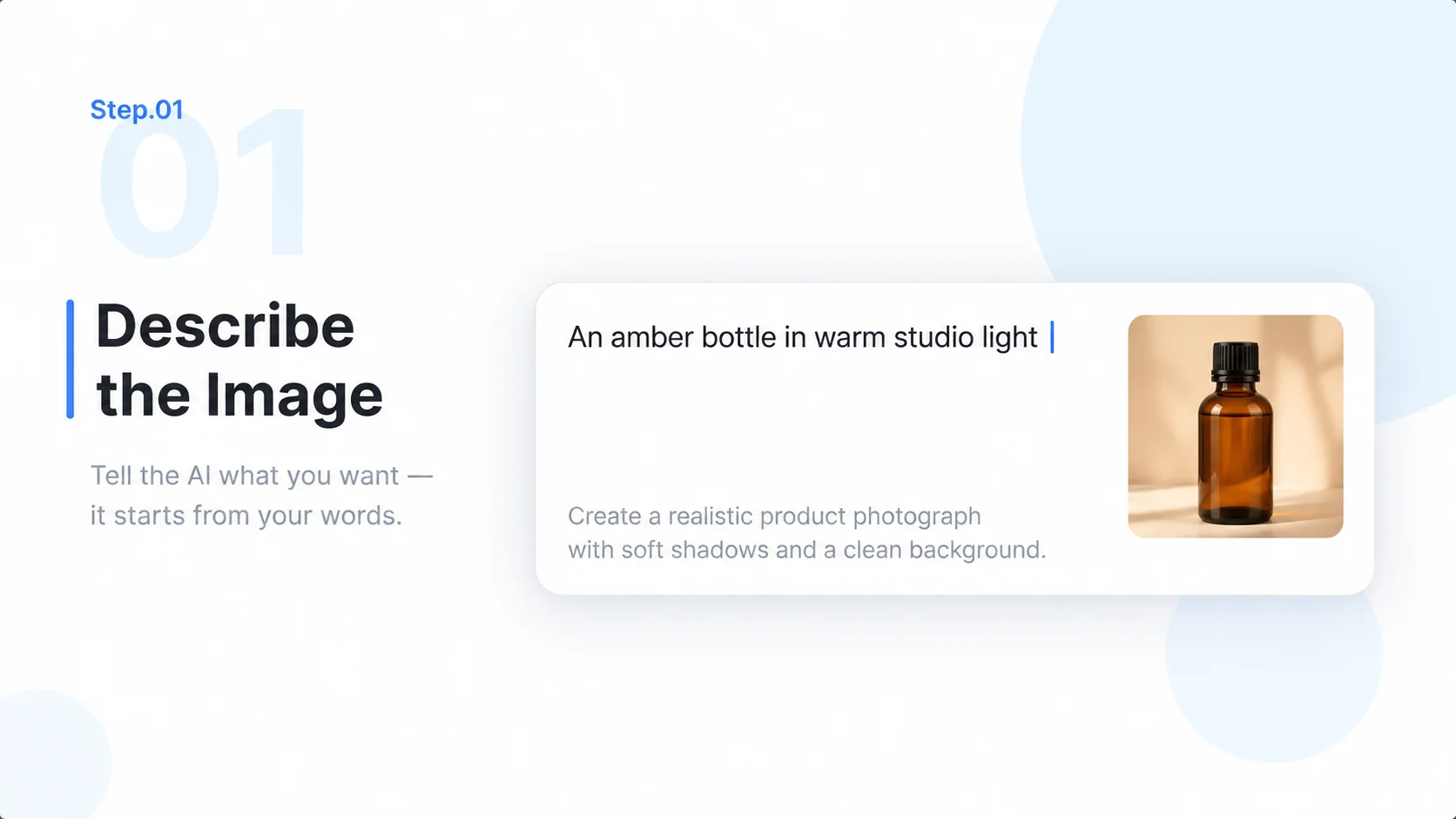
    Describe the Image

    State the subject, purpose, visual style, lighting, and composition. Start with one concrete scene rather than several unrelated ideas.

    Illustrative AI Image Generator step 1: Describe the Image.
  2. Step.02

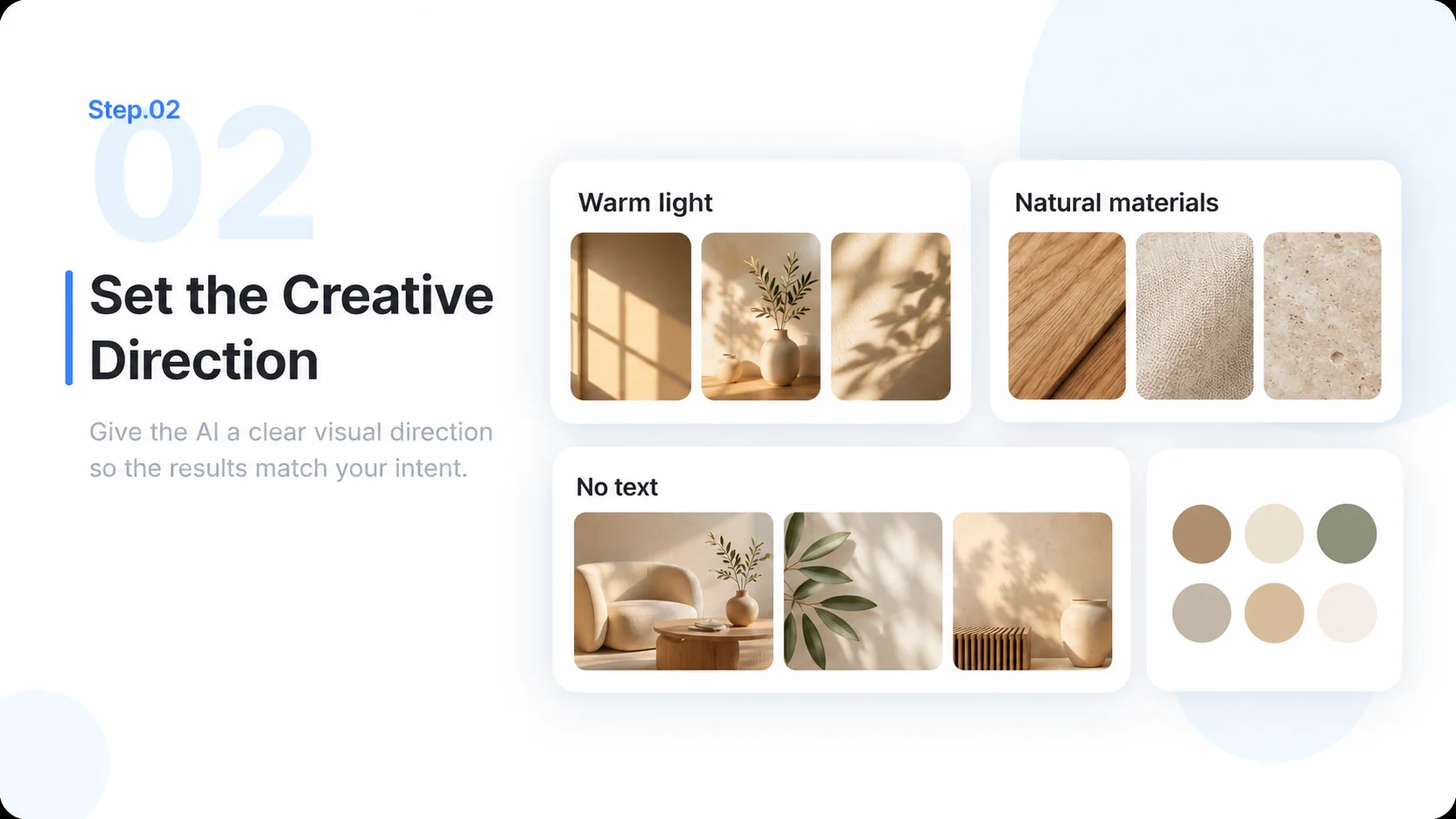
    Set the Creative Direction

    Add palette, viewpoint, important details, and exclusions. Choose the image-generation option available in your MiniMax Code session.

    Illustrative AI Image Generator step 2: Set the Creative Direction.
  3. Step.03

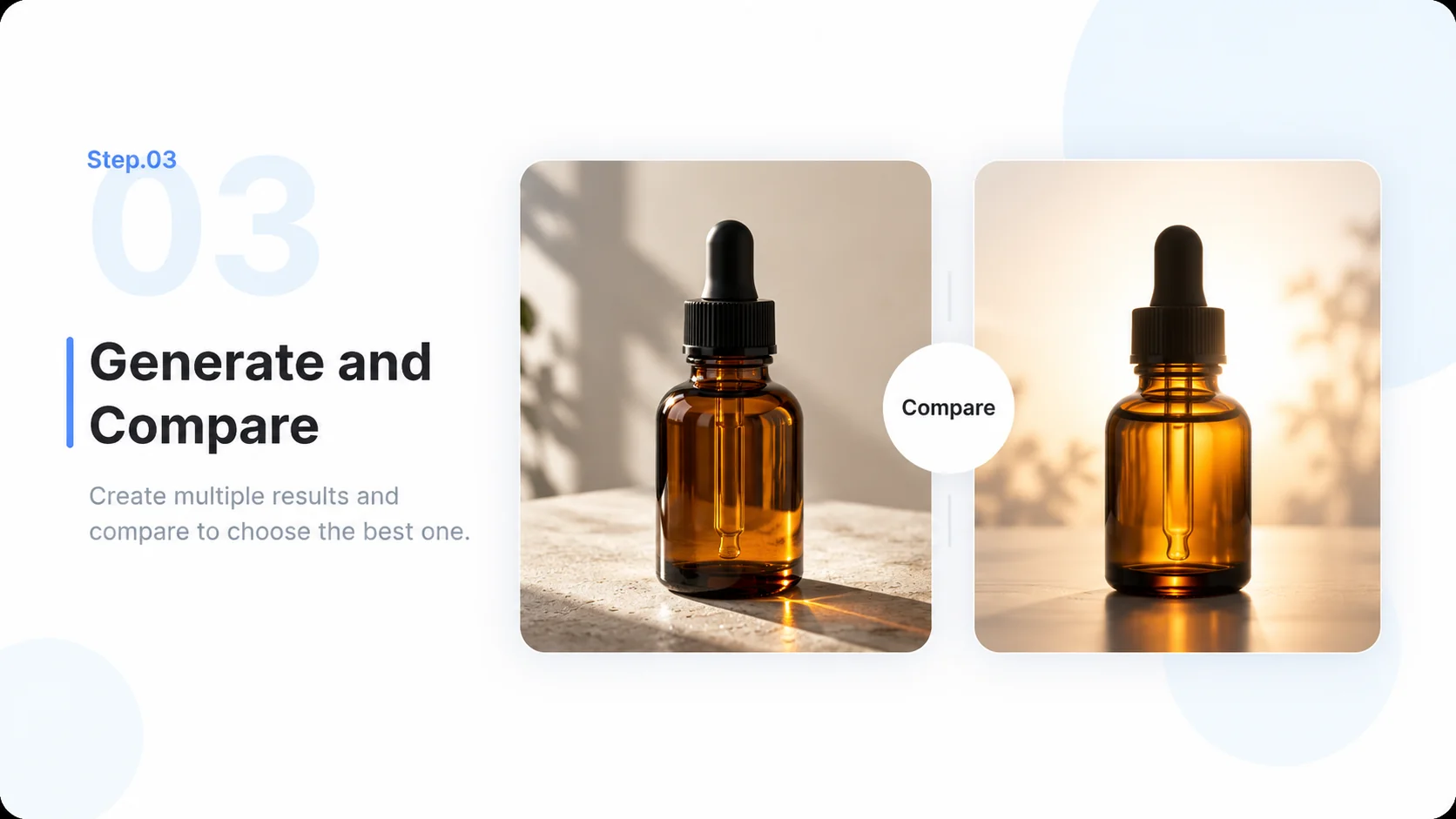
    Generate and Compare

    Generate in MiniMax Code, inspect the result, and ask for focused alternatives. Available models, usage, and settings depend on the current product.

    Illustrative AI Image Generator step 3: Generate and Compare.
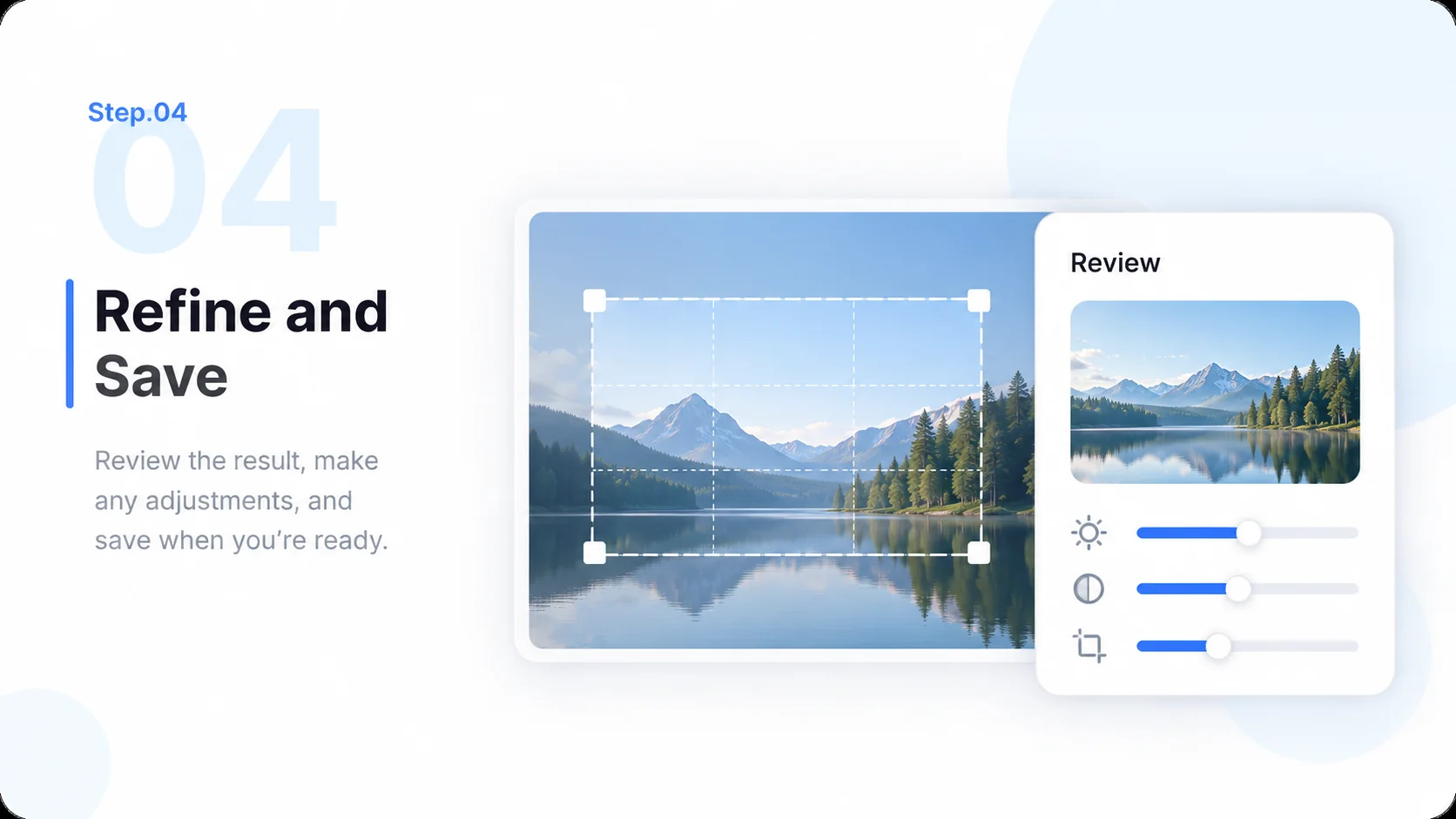
  4. Step.04

    Refine and Save

    Check details and intended cropping, revise the brief as needed, and save the result through the product controls available to you.

    Illustrative AI Image Generator step 4: Refine and Save.

AI Image Generator FAQs

Practical answers about inputs, scope, product workflow, and review.

Give Your Next Image a Clear Creative Brief