AI Chart Generator for Data People Can Read

Turn a table and a question into a chart with clear labels, sensible scales, and a source you can check. MiniMax Code helps choose the visual form, prepare the data, and refine the chart without hiding the underlying values.

Start Your AI Chart Generator Brief

Choose an example or describe your task, then continue in MiniMax Code.

Sample prompts

Choose the Chart That Fits the Question

Illustrative charts use small sample datasets to demonstrate different visual questions. They are not business results or a substitute for checking your own data.

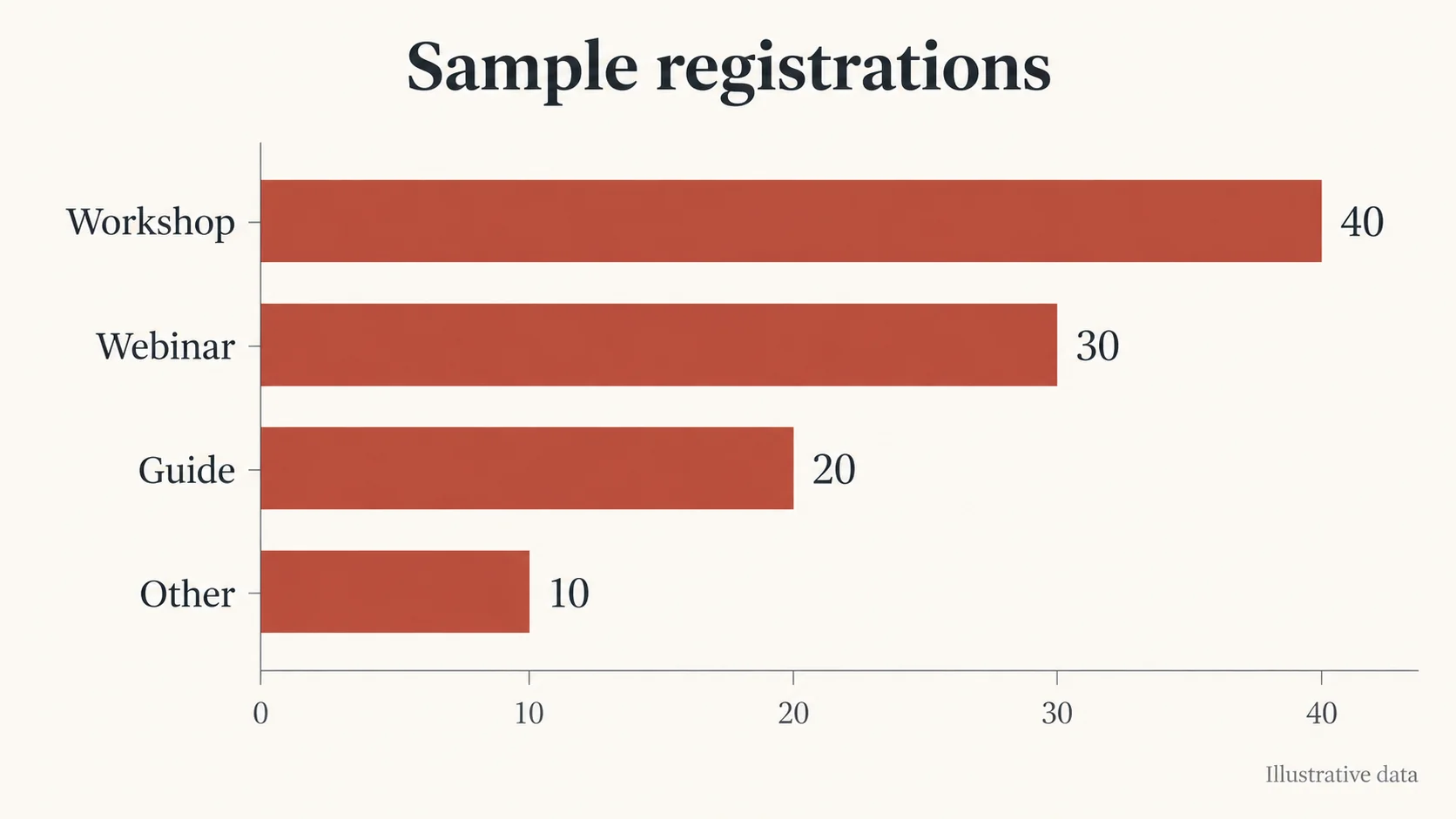
AI Chart Generator: Category Comparison. Illustrative concept, not a verified customer result.

A horizontal bar chart that compares category totals with direct labels and a zero baseline.

Make the Chart Clear Without Losing the Data

An AI chart generator should help readers see the comparison and help reviewers check the values.

Chart Selection

Start with the Question, Then Choose the Shape

Use bars to compare categories, a line for ordered observations, a part-to-whole chart for a defined total, and a scatter plot to inspect two numeric variables. Tell MiniMax Code what the viewer should compare. Avoid choosing a chart only because it looks impressive; a useful graph makes the intended question easier to answer.

Try Now
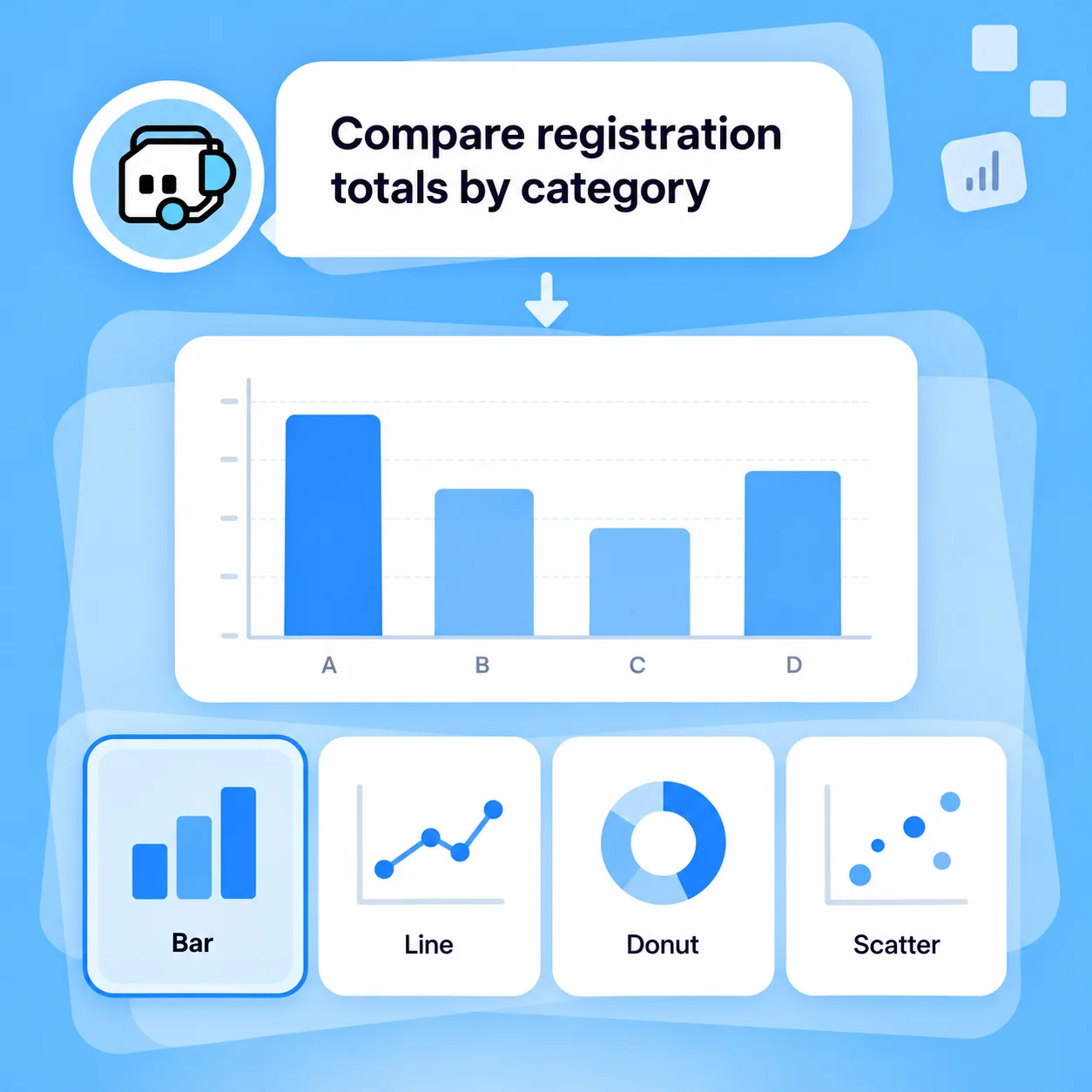
Illustrative AI Chart Generator workflow: Start with the Question, Then Choose the Shape.

Data Preparation

Check Units, Grouping, and Missing Values

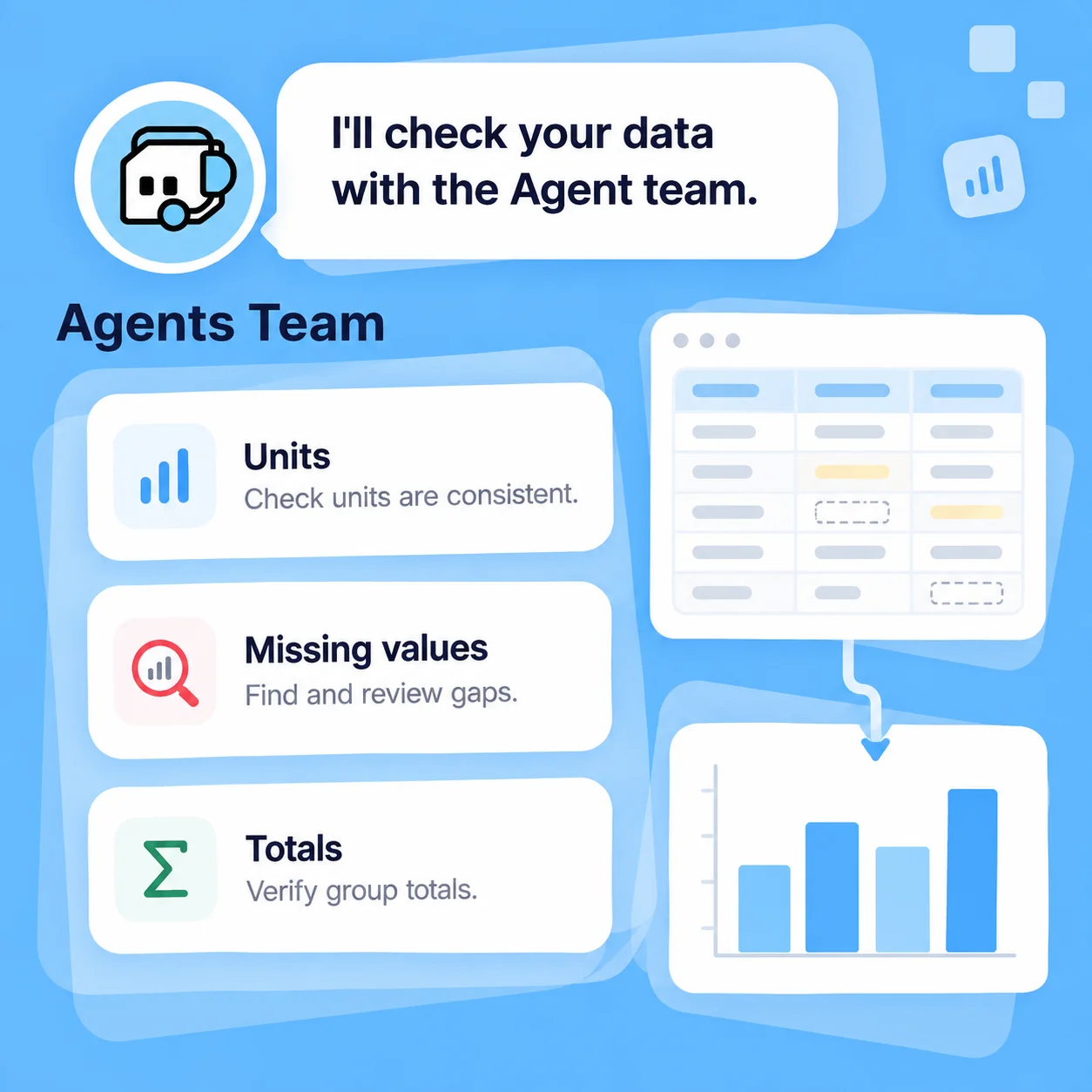
Provide readable table data and explain each column, its units, time range, and aggregation rule. MiniMax Code can help prepare the calculations or code that creates the chart. Keep missing values distinct from zero, identify duplicate rows, and verify totals before plotting. Preserve the source table so a visual result can be traced back to the inputs.

Try Now
Illustrative AI Chart Generator workflow: Check Units, Grouping, and Missing Values.

Presentation and Review

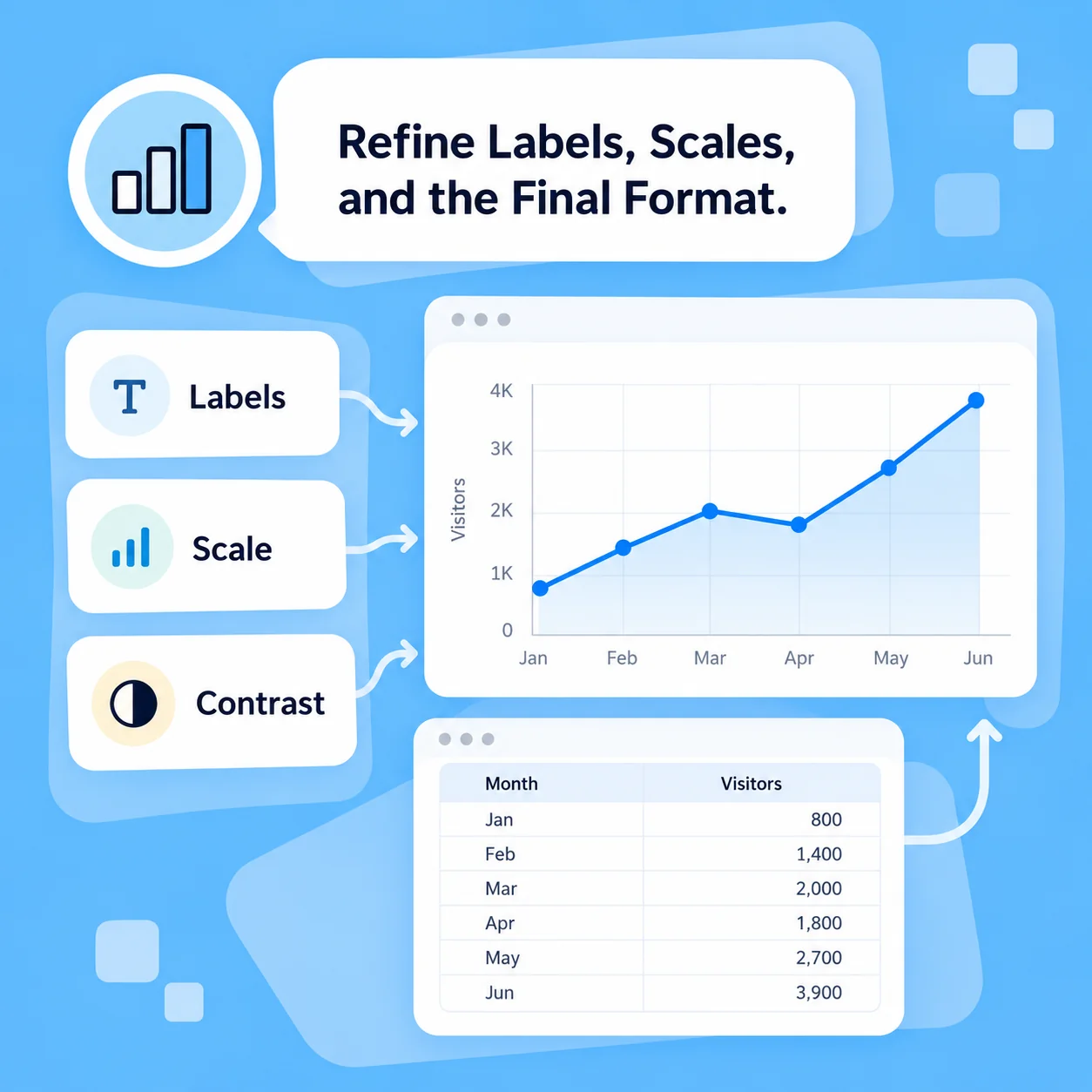
Refine Labels, Scales, and the Final Format

Ask for a chart title that states the comparison, direct labels where useful, and a legend readers can understand. Check axis limits and color contrast; do not crop a scale to exaggerate a difference. Request code or the output format supported by your workflow, then inspect the rendering at the intended size before adding it to a report or presentation.

Try Now
Illustrative AI Chart Generator workflow: Refine Labels, Scales, and the Final Format.

From Table Values to a Reviewable Chart

A comparison of workflows, not measured performance. Review facts and outputs before using them.

Working Manually

Question
Choose a chart from a gallery
Preparation
Clean and aggregate values in separate steps
Plotting
Configure labels and scales individually
Revision
Rebuild styling and calculations manually
Verification
Compare chart values with the source table

With MiniMax Code

Question
Select the form that fits the comparison
Preparation
Draft explicit transformations and preserve the source
Plotting
Create the chart from a brief with stated units and labels
Revision
Adjust the visual or plotting code while keeping the data context
Verification
Perform the same check; an AI-generated chart still needs review

Create a Chart in Four Steps

Prepare a focused brief, work in MiniMax Code, and review the result before the final handoff.

  1. Step.01

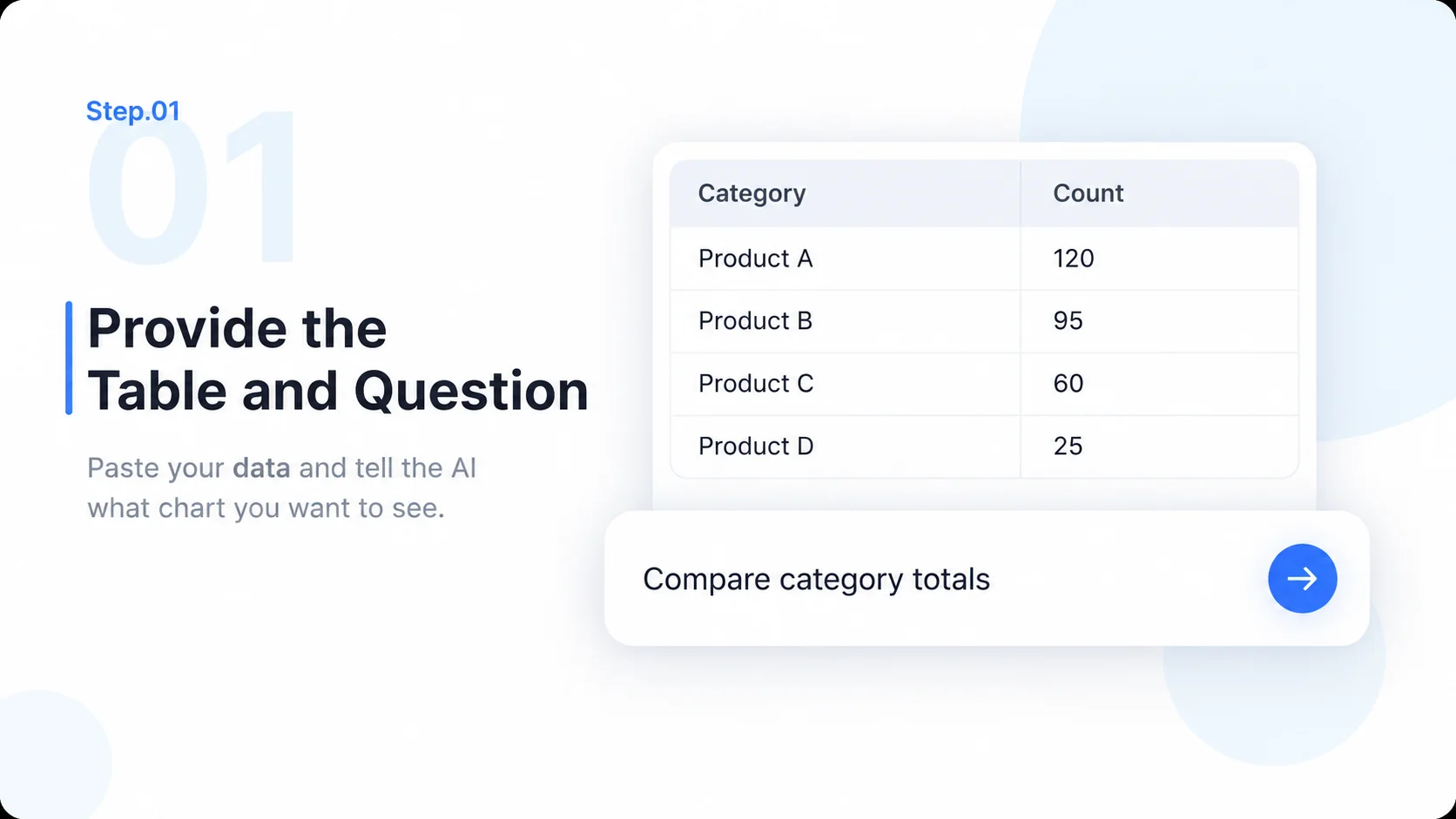
    Provide the Table and Question

    Describe the columns, units, period, and comparison. Add the actual data inside MiniMax Code through the available input method.

    Illustrative AI Chart Generator step 1: Provide the Table and Question.
  2. Step.02

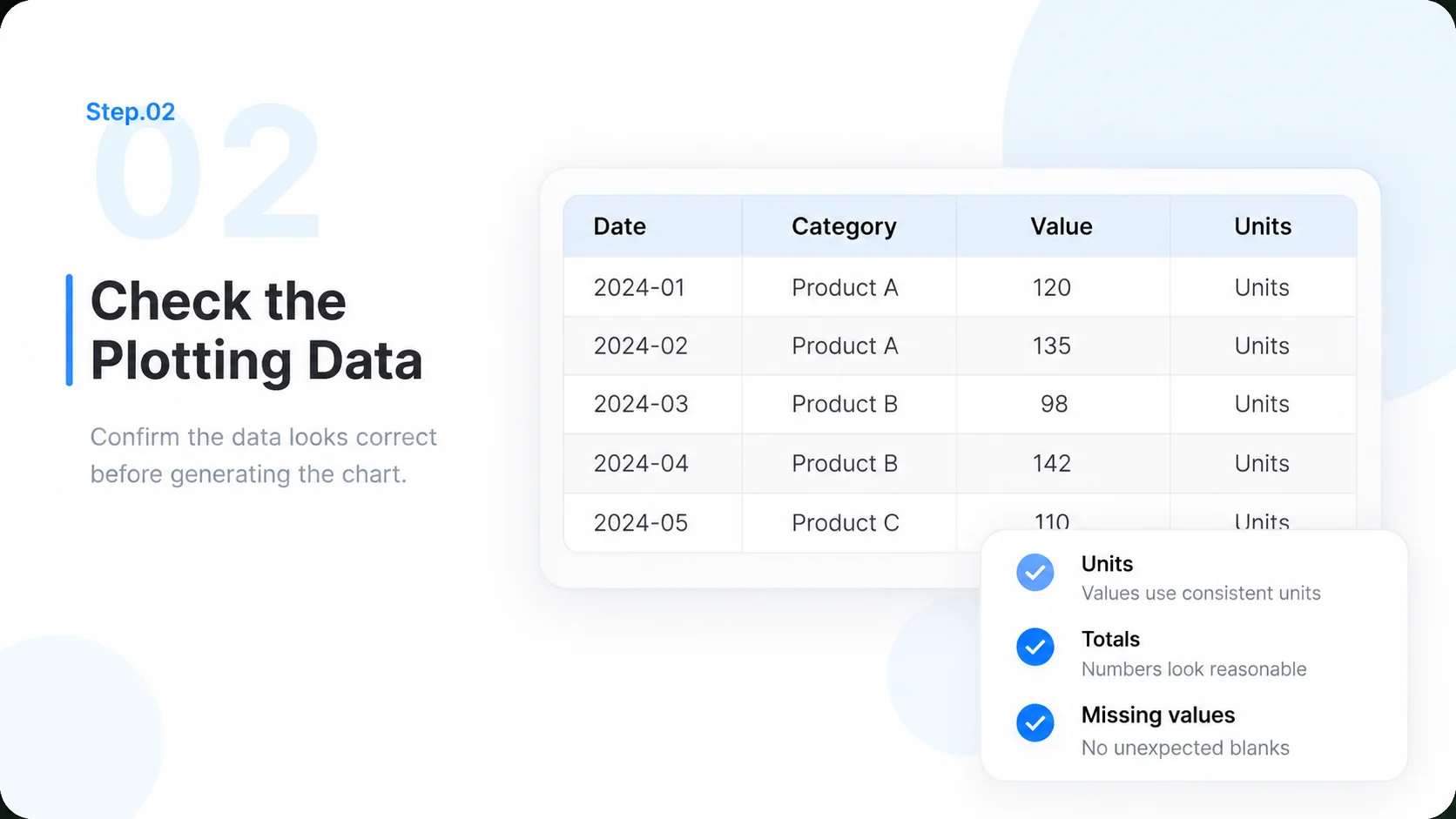
    Check the Plotting Data

    Confirm grouping, missing values, duplicates, and calculations. Keep the source and any transformations available for review.

    Illustrative AI Chart Generator step 2: Check the Plotting Data.
  3. Step.03

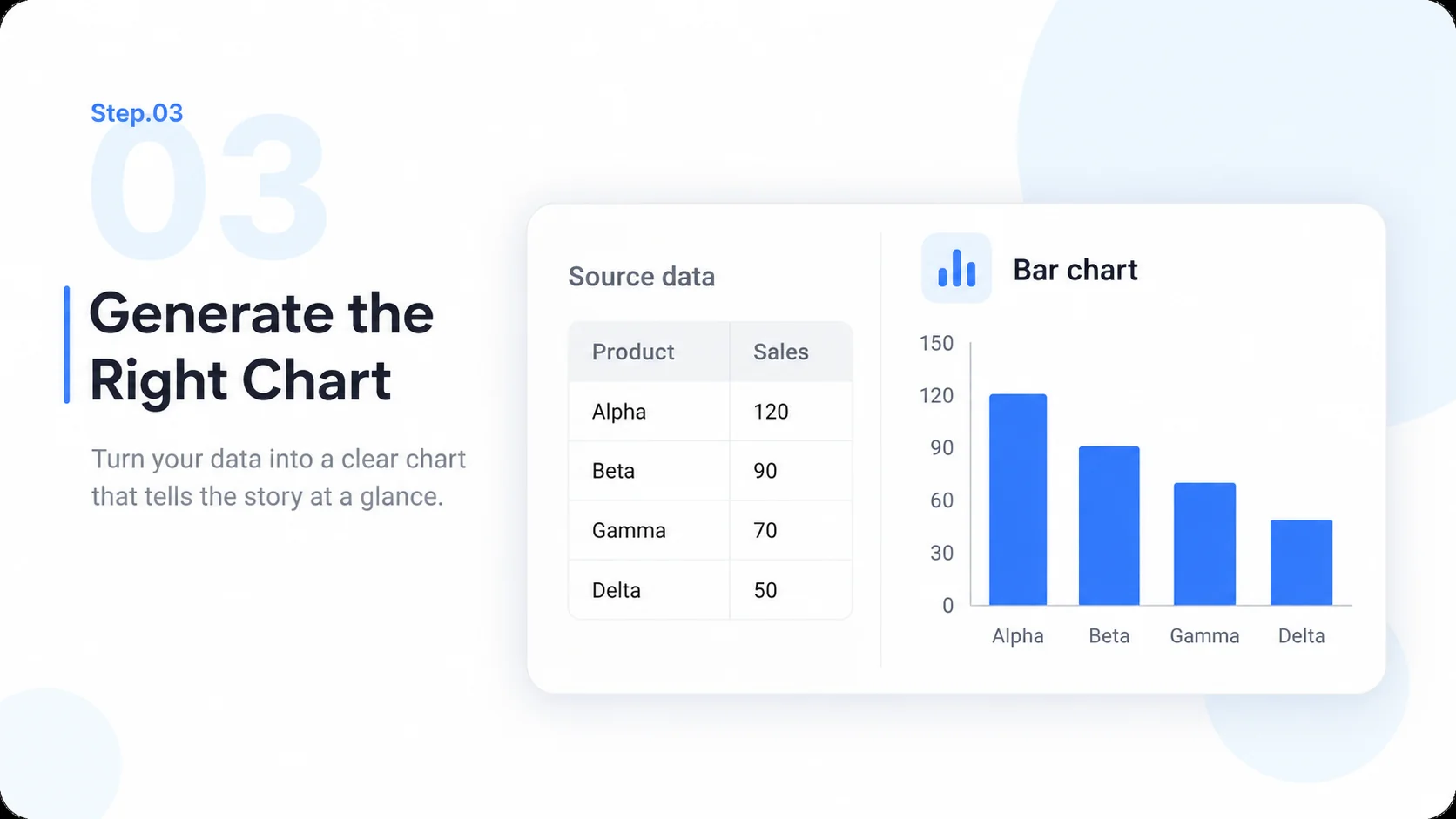
    Generate the Right Chart

    Choose a suitable chart type and create a visual with explicit labels, scales, and a legend. Request the plotting code when useful.

    Illustrative AI Chart Generator step 3: Generate the Right Chart.
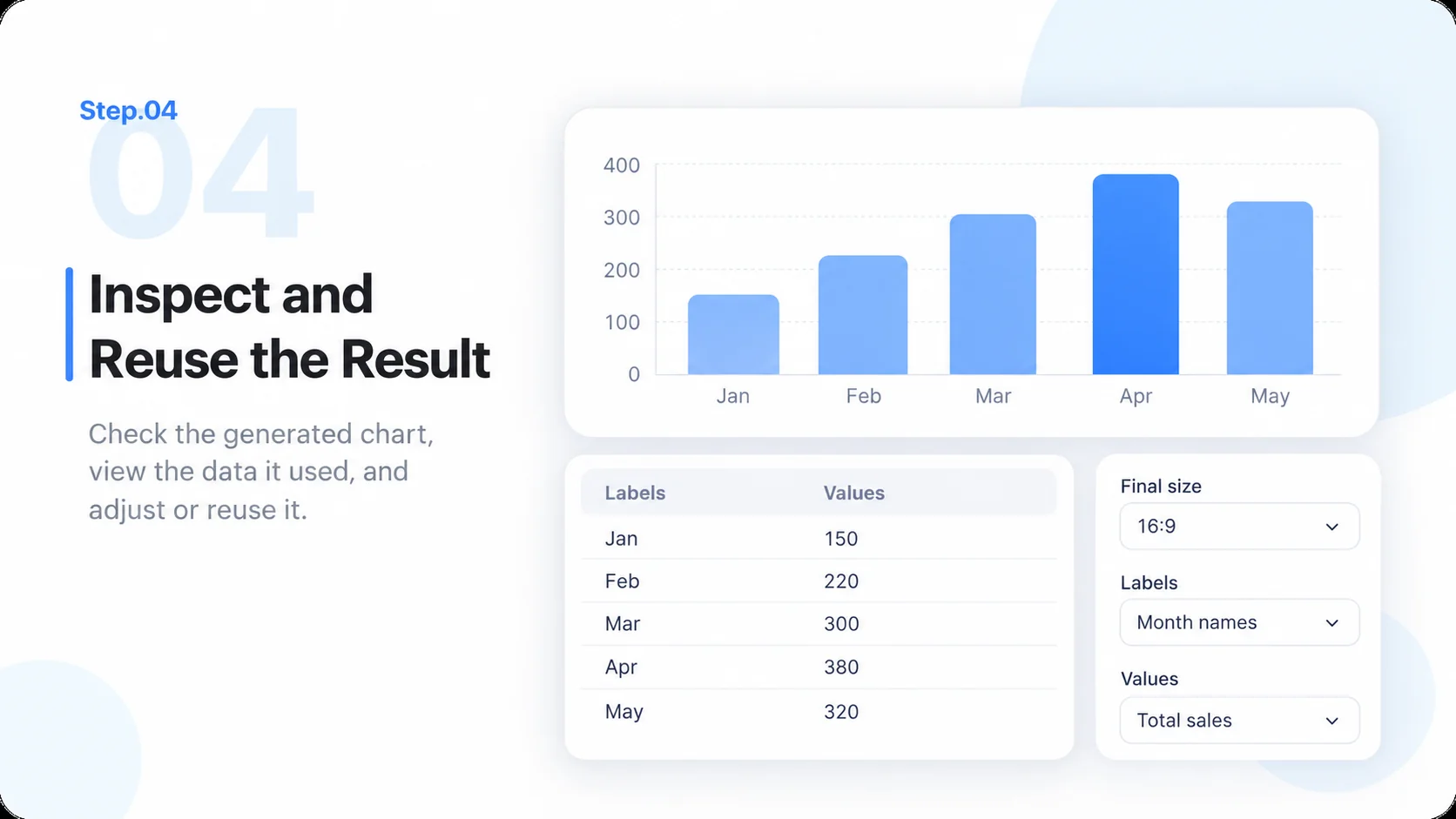
  4. Step.04

    Inspect and Reuse the Result

    Compare the chart against the source values, check legibility at its final size, and save or export through the tools available in your session.

    Illustrative AI Chart Generator step 4: Inspect and Reuse the Result.

AI Chart Generator FAQs

Practical answers about inputs, scope, product workflow, and review.

Give Your Data a Clear Visual Explanation